![Sportal365 logo-4.png]](https://knowledge-base.sportal365.com/hs-fs/hubfs/Sportal365%20logo-4.png?height=40&name=Sportal365%20logo-4.png)
Automatic lists elevate the traditional editorial lists by introducing the option for the list to be based on Most Recent or Most Popular, based on data sources such as GA4 or SMARTOCTO.
Key Benefits:
- Streamlined publishing
- Time efficiency
- Enhanced content strategy
Creating an Automatic list
Step 1: Initiate a new list
In the left sidebar, under CONTENT, select Lists > Automated lists, then select New List.
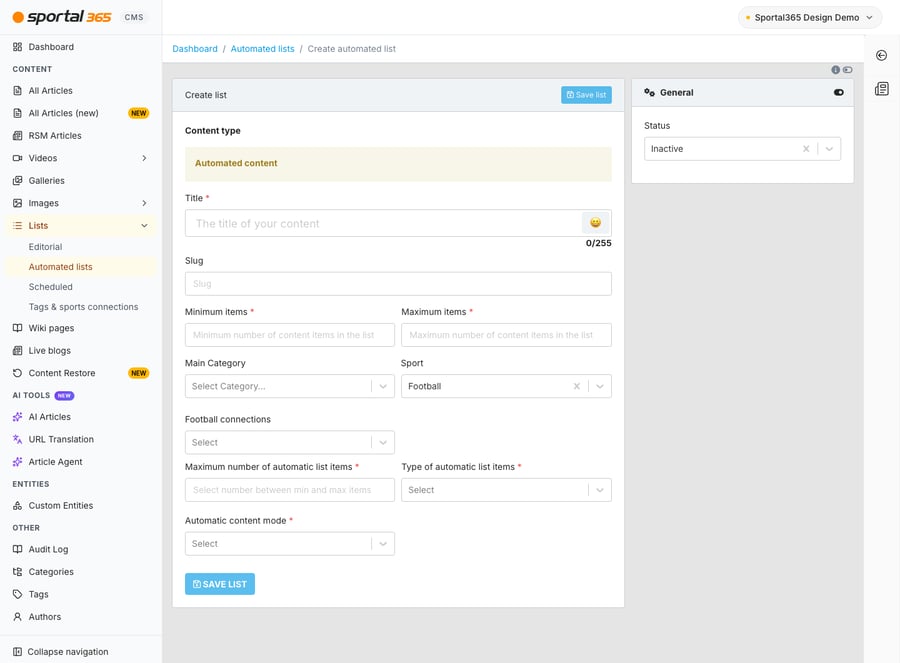
Step 2: Fill details and save
Complete the required fields and choose Save list.
Adding content manually or changing order
Step 1: Access content editor
In the Automated lists listing, select Edit content next to your list.
Step 2: Items added automatically are marked Automated content. If you wish to make one of them editable, select Make editorial next to it.
Step 3: Add items
Use the + symbol to populate your list with content.
Step 4: Customize display details (Optional)
For each item, you can modify the title and summary to better fit the context of your list by selecting Edit.
Step 5: Confirm changes
Ensure all your modifications are saved by selecting Save list.