![Sportal365 logo-4.png]](https://knowledge-base.sportal365.com/hs-fs/hubfs/Sportal365%20logo-4.png?height=40&name=Sportal365%20logo-4.png)
Custom blocks let you create external custom applications, integrate them into the platform, and add them as blocks to the body of your content.
Creating custom blocks
To create a custom block:
- In the left sidebar, under CUSTOMIZATION, select Custom Blocks, then select New Custom block.
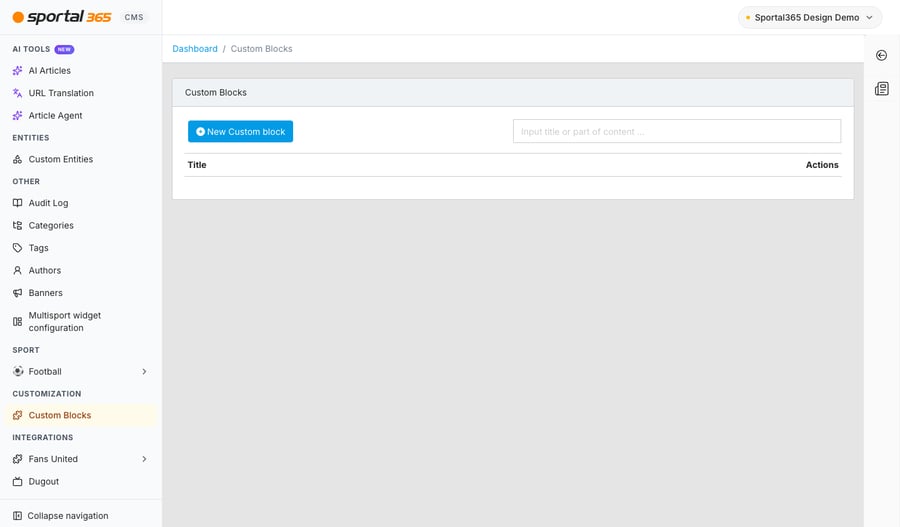
- Type the name of your block in the Block name box.
- Paste a link to an external application in the Application URL box.
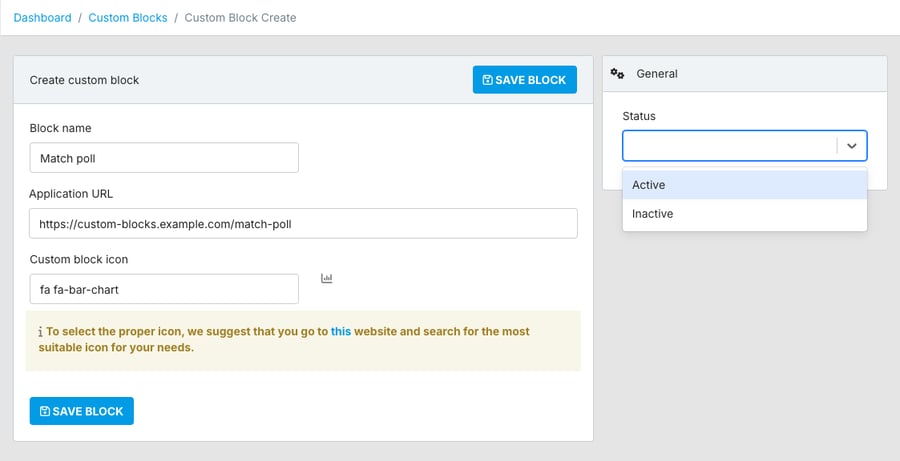
- In Custom block icon, enter the name of an icon for your block, starting with fa fa- (for example, fa fa-bar-chart). To find a suitable icon, follow the link in the tip below the field.
- To be able to add your custom block to your content, go to General → Status → Active. Inactive custom blocks are not offered in the + block menu.
- When done, select SAVE BLOCK.