![Sportal365 logo-4.png]](https://knowledge-base.sportal365.com/hs-fs/hubfs/Sportal365%20logo-4.png?height=40&name=Sportal365%20logo-4.png)
The integration with Dugout, a platform with unmatched access to videos from the world’s top clubs, makes it possible to find and add football videos to your posts without leaving your editing screen.
After you configure Dugout, you can add videos as supporting content or as the main media of your post.
Adding Dugout video as supporting content
To add a Dugout video as supporting content, add a Dugout video block to the body of your post:
-
Open an article, video, or gallery.
-
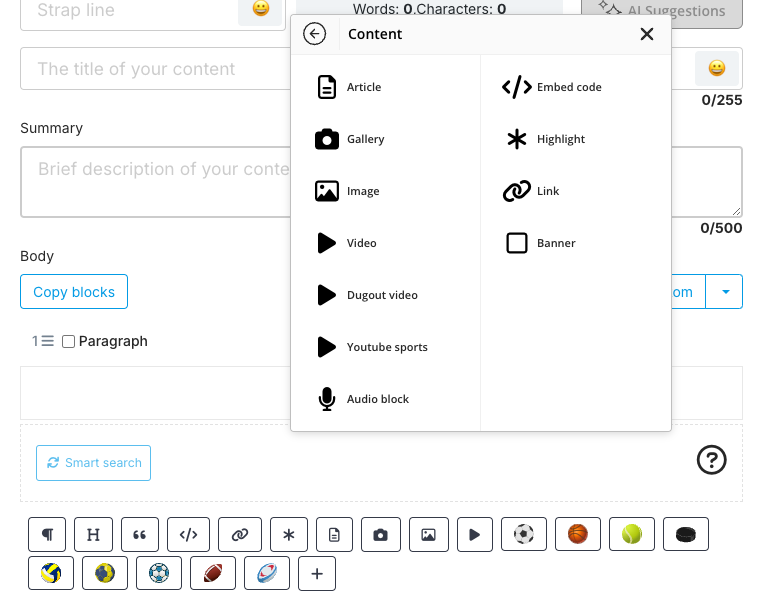
In the body, in the row of buttons below a block, select + (Add block) to add a video block.
-
From the menu, choose Content > Dugout video.
-
When the block opens, select the language you want to conduct your search in.
-
Search by player, team, tournament, and so on for the video you want to add – for example, type “Messi” or “Manchester United”.
-
A list of matching videos will appear (in this example, videos featuring Lionel Messi). To add the one you want, hover over it and select the + that appears.
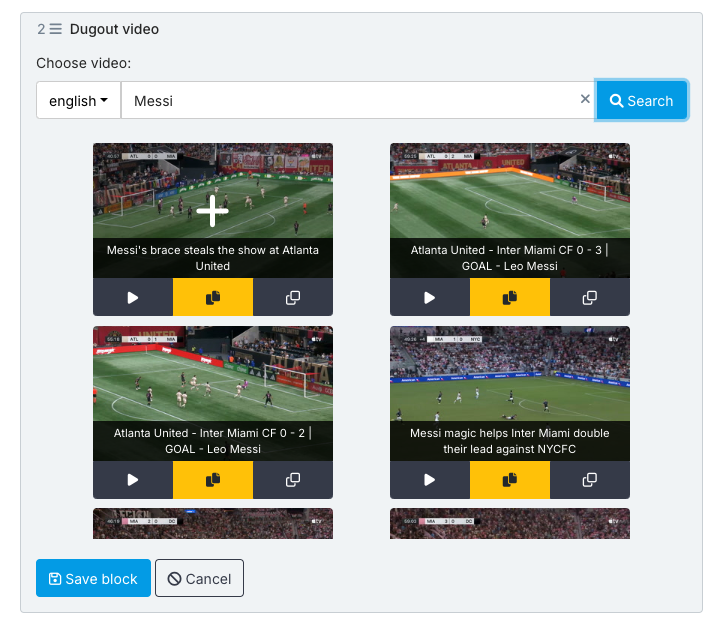
You can preview your video before saving it, or copy the embed code to use it elsewhere.
-
When done, select Save block.
Adding Dugout video as main media
In addition to adding Dugout videos as supporting content, videos can also serve as the main media of your posts.
Note that Dugout videos can only be used as main media in articles and videos, but you can add them as supporting content to the body of articles, videos, and galleries.
To add a Dugout video as main media:
-
Open an article or video.
-
Select the Media tab from your content properties.
-
Go to Choose Main Media > Embed video.
-
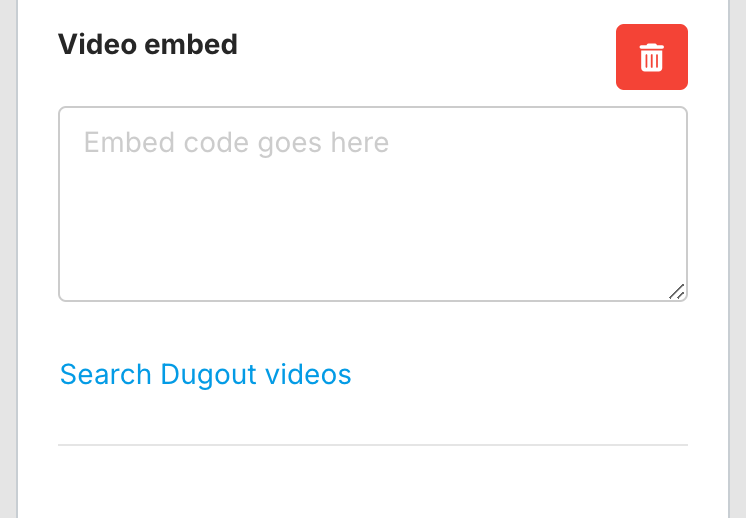
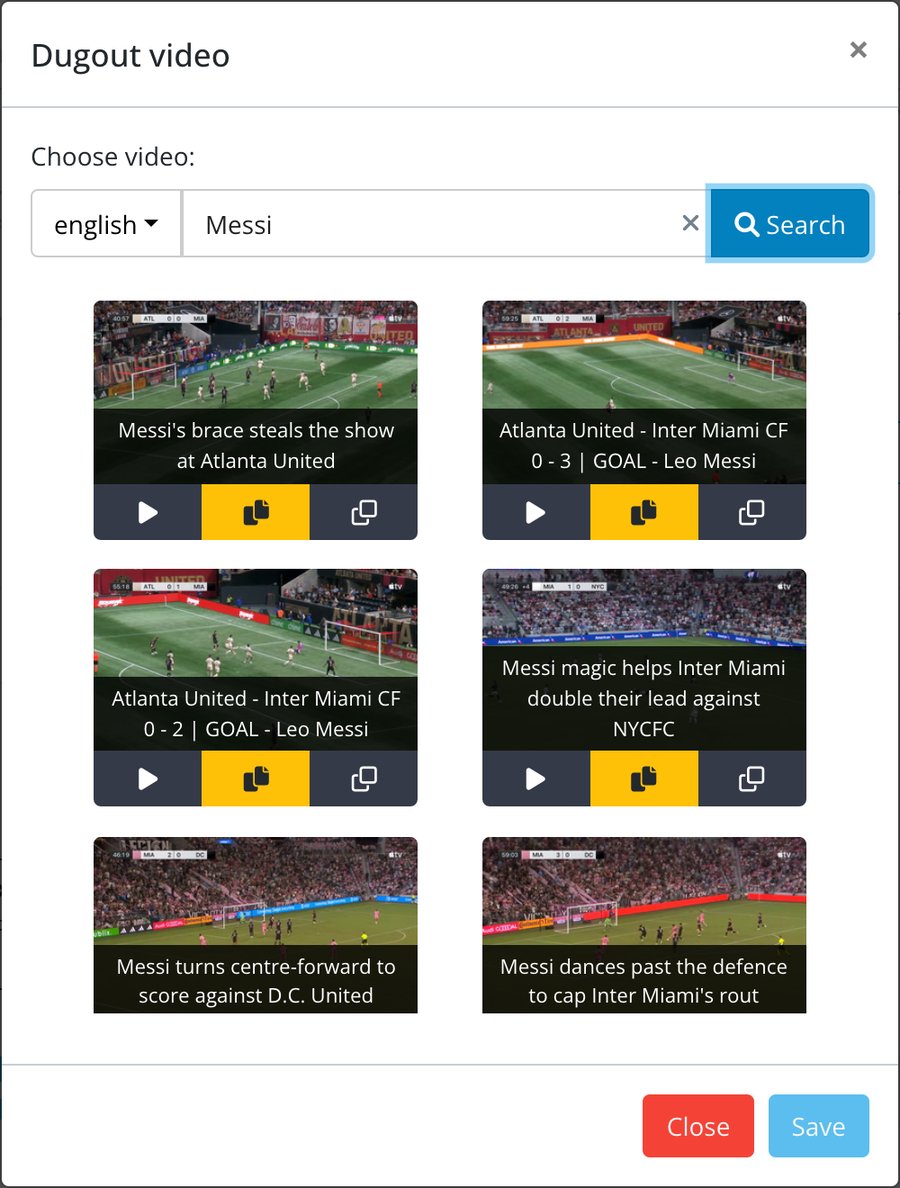
When the Video embed box opens, you can either paste your Dugout video’s embed code or select Search Dugout videos.
Note that you can also open Dugout under INTEGRATIONS in the left sidebar if you want to use elements of the Dugout interface or integrate a video into your content.