![Sportal365 logo-4.png]](https://knowledge-base.sportal365.com/hs-fs/hubfs/Sportal365%20logo-4.png?height=40&name=Sportal365%20logo-4.png)
What the AI Article Agent does
When you run the agent, it reads your prompt and any context you provide, identifies the people, teams, matches, and competitions involved, and builds a complete article block by block. A finished draft typically includes:
- A title, strapline, and summary.
- Body text organized into sections with headings.
- Sports widgets placed contextually within the body — for example a single event, team, head-to-head (H2H) match, or top scorers widget.
As it works, the agent resolves the entities in your prompt into Sports Connections (such as the specific match, competition, and teams) and tracks the article structure live in a Content Blocks panel. When it finishes, the article opens in the standard editor.
Note: The AI Article Agent produces a draft for you to review. Nothing is published automatically — you finalize and publish the article yourself after checking the content.
See the agent build a complete article from a single prompt in this demo, then follow the steps below.
Step 1: Open the Article Agent
In the left navigation, under AI Tools, select Article Agent.
Step 2: Set the sport and category
At the top of the editor, choose the Sport the article covers and the Category for the content. Category is required — without it the agent cannot start. These settings tell the agent which type of data and widgets are relevant.
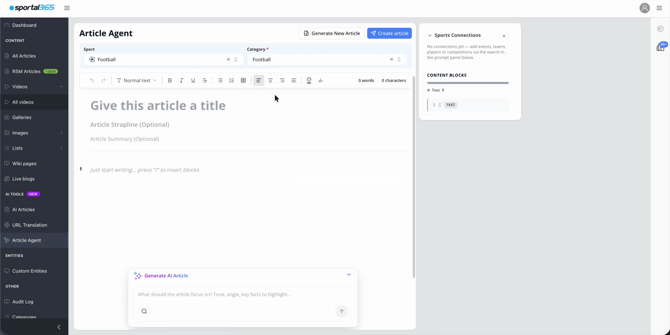
The Article Agent: Sport and Category selectors, the title/strapline/summary editor, the Sports Connections panel, and the Generate AI Article prompt box.
Step 3: Add context (optional)
You can give the agent a head start before generating:
- Title, strapline, and summary — type any of these directly, or leave them for the agent to write.
- Sports Connections — use the search in the prompt panel to add specific events, teams, players, or competitions. Connecting the exact entities grounds the article in the right data. If you don’t add any, the agent resolves them automatically from your prompt.
Step 4: Write your prompt and generate
In the Generate AI Article box at the bottom of the screen, describe what the article should focus on — its angle, tone, and the key facts to highlight — then submit it to start generation.
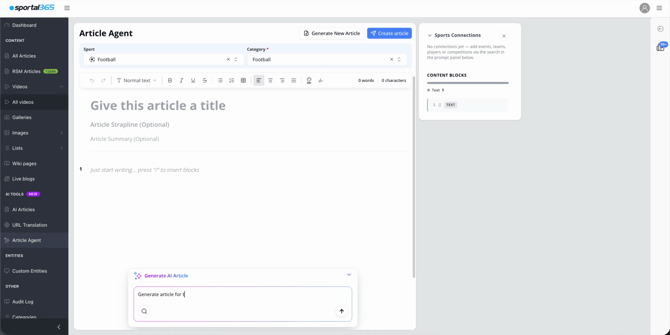
Describe the article’s focus, tone, and key facts in the Generate AI Article box.
The agent then runs autonomously, displaying live status messages — for example Collecting match data, Resolving entities, Mining match details, Searching for additional context, and Writing article. The Sport and Category fields are locked while generation is in progress.
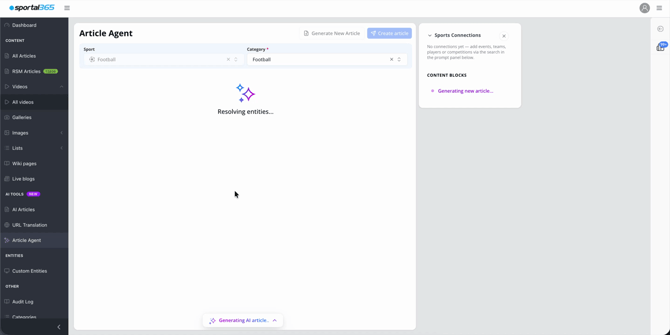
The agent shows its progress (here, “Resolving entities…”) while it builds the article.
Step 5: Follow progress in the Content Blocks panel
While the agent builds the article, the panel on the right shows what it is producing in real time:
- Sports Connections — the events, teams, and competitions resolved from your prompt.
- Content Blocks — a live outline of every block being added, each labeled with its type (for example TEXT, HEADING 2, SINGLE EVENT, TEAM, H2H MATCH, or TOP SCORERS), with running counts of text blocks and widgets.
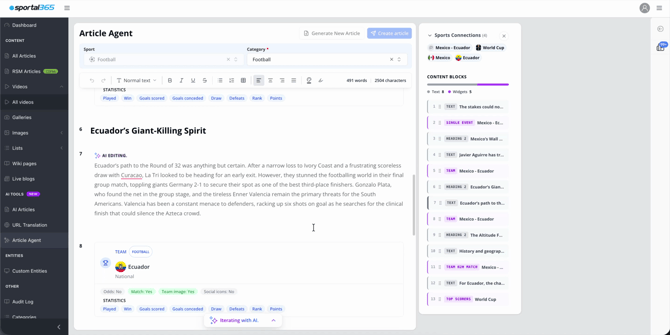
The Content Blocks panel tracks the article’s structure live, alongside the resolved Sports Connections.
Supported widgets
When building an article, the AI Article Agent can include any of the following sports widgets. Each widget name is followed by its system identifier, which appears in the Content Blocks panel during generation.
Football
- Single Event (Detailed) — football-single-event-detailed
- Match Center — football-match-center
- Lineups — football-lineups
- Odds — football-odds
- Stakes — football-stakes
- Team Match H2H (head-to-head) — football-team-match-h2h
- Timeline — football-timeline
- Team — football-team
- Player — football-player
- Standings — football-standings
- Top Scorers — football-top-scorers
- Most Decorated — football-most-decorated
Basketball
- Single Event — basketball-single-event
- Single Event (Detailed) — basketball-single-event-detailed
- Standings — basketball-standings
Note: Which widgets appear depends on the article’s content and the available sports data — a widget is only added when relevant data exists for the teams, players, match, or competition involved. Additional sports and widget types will be added over time — check the latest release notes for updates.
Step 6: Review the finished article
When generation completes, an Article Created confirmation appears with a Go to Article button, and a success notification confirms the article was created. You can choose Iterate with AI to refine the draft further, or Go to Article to open it in the editor.
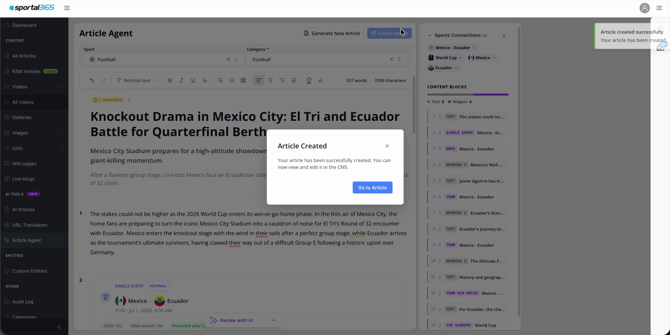
The Article Created confirmation, with options to iterate further or go straight to the article.
Note: Watch for a flag such as Unverified on the draft. It highlights content that should be checked before publishing. Always review the agent’s output — especially facts, scores, and the data shown in widgets — before going live.
Step 7: Edit and publish
Selecting Go to Article opens the completed article in the standard Edit Article screen, with the title, strapline, summary, body text, and embedded sports widgets all in place. From here you can:
- Edit any text block, heading, or widget.
- Adjust metadata in the side panels (General, Media, Tags, SEO, and so on).
- Run AI Suggestions for further widget and SEO recommendations.
- Save, preview, and publish when ready.
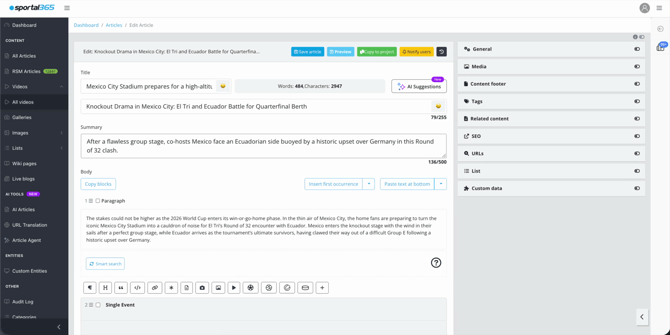
The finished article opens in the standard editor, fully populated and ready to refine and publish.
Tips for best results
- Be specific about the angle, tone, and key facts you want emphasized — clearer prompts produce more focused articles.
- Add the exact event, teams, or competition as Sports Connections when you know them, so the agent pulls the correct data and widgets.
- Use the Content Blocks panel to confirm the agent included the sections and widgets you expected.
- Always fact-check the draft and verify any flagged content before publishing.
- Use Iterate with AI to refine rather than starting over when the result is close.