![Sportal365 logo-4.png]](https://knowledge-base.sportal365.com/hs-fs/hubfs/Sportal365%20logo-4.png?height=40&name=Sportal365%20logo-4.png)
What the AI Article Agent does
When you run the agent, it reads your prompt and any context you provide, identifies the people, teams, matches, and competitions involved, and builds a complete article block by block. A finished draft typically includes:
- A title, strapline, and summary.
- Body text organized into sections with headings.
- Sports widgets placed contextually within the body — for example a single event, team, head-to-head (H2H) match, or top scorers widget.
- Related articles, added as article blocks.
- AI Enrichment Proposals: suggested SEO metadata and, when a suitable one is found, a main image.
As it works, the agent resolves the entities in your prompt into Sports Connections (such as the specific match, competition, teams, and players) and lists every block of the draft in the Content blocks panel. When it finishes, the draft stays in the Article Agent so you can review and refine it, then save it to the CMS with Create.
Note: The AI Article Agent produces a draft for you to review. Nothing is saved to the CMS until you click Create, and nothing is published automatically — you finalize and publish the article yourself after checking the content.
See the agent build a complete article from a single prompt in this demo, then follow the steps below. The demo was recorded on an earlier version of the Article Agent, so some labels and screens differ from the steps below.
Step 1: Open the Article Agent
In the left sidebar, under AI TOOLS, select Article Agent.
Step 2: Set the sport and category
At the top of the editor, choose the Sport the article covers and the Category for the content. Category is required — the Create button stays disabled until you choose one. These settings tell the agent which type of data and widgets are relevant.
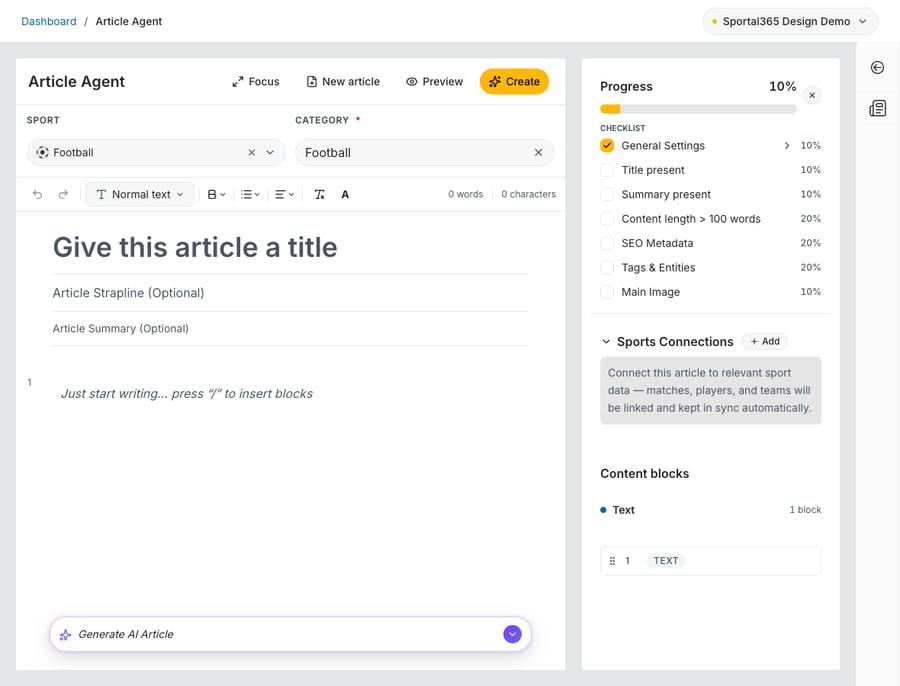
The Article Agent: Sport and Category selectors, the title/strapline/summary editor, the Generate AI Article prompt bar, and the Progress, Sports Connections and Content blocks panels on the right.
Step 3: Add context (optional)
You can give the agent a head start before generating:
- Title, strapline, and summary — type any of these directly, or leave them for the agent to write.
- Sports Connections — click + Add next to Sports Connections in the right column (or the magnifier in the expanded prompt box), type at least 3 characters, and click + next to an event, team, player, or competition. Connecting the exact entities grounds the article in the right data. If you don’t add any, the agent resolves them automatically from your prompt, and it can add further connections on its own.
Step 4: Write your prompt and generate
Click the Generate AI Article bar at the bottom of the editor to expand it. In the box (“Describe what to write or change…”), describe what the article should focus on — its angle, tone, and the key facts to highlight — then click the purple arrow to start generation.
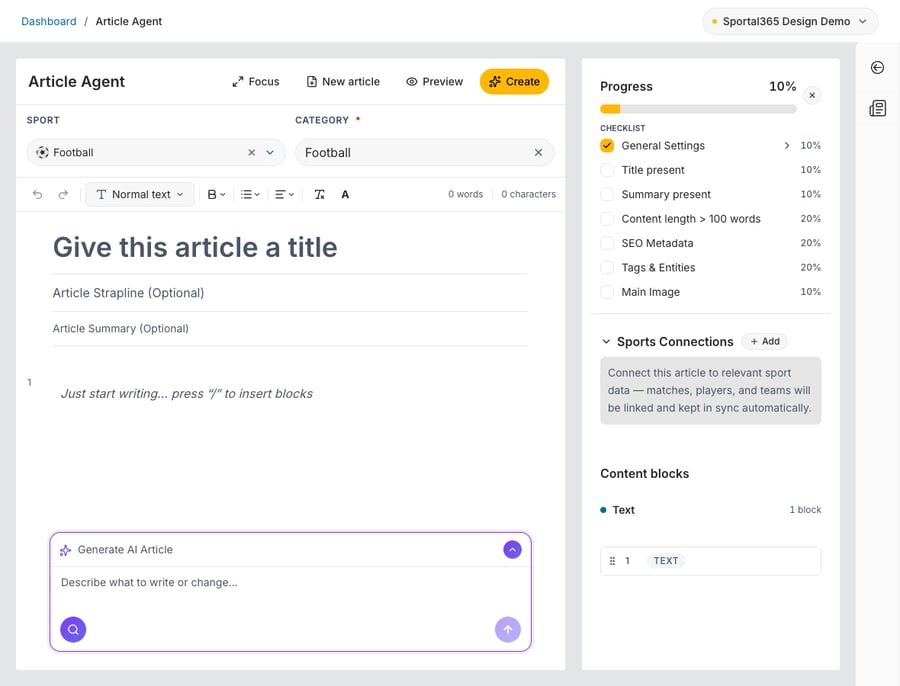
Describe the article’s focus, tone, and key facts in the Generate AI Article box.
The agent then runs autonomously, displaying live status messages — for example Gathering match data, Fetching match events, Loading match statistics, Searching for additional context, Writing article, Verifying facts, Selecting images, and Selecting related articles. Placeholders fill the article area until the draft is ready, which can take a minute or two, and a Stop generating button lets you cancel. The Sport selector is locked while generation is in progress.
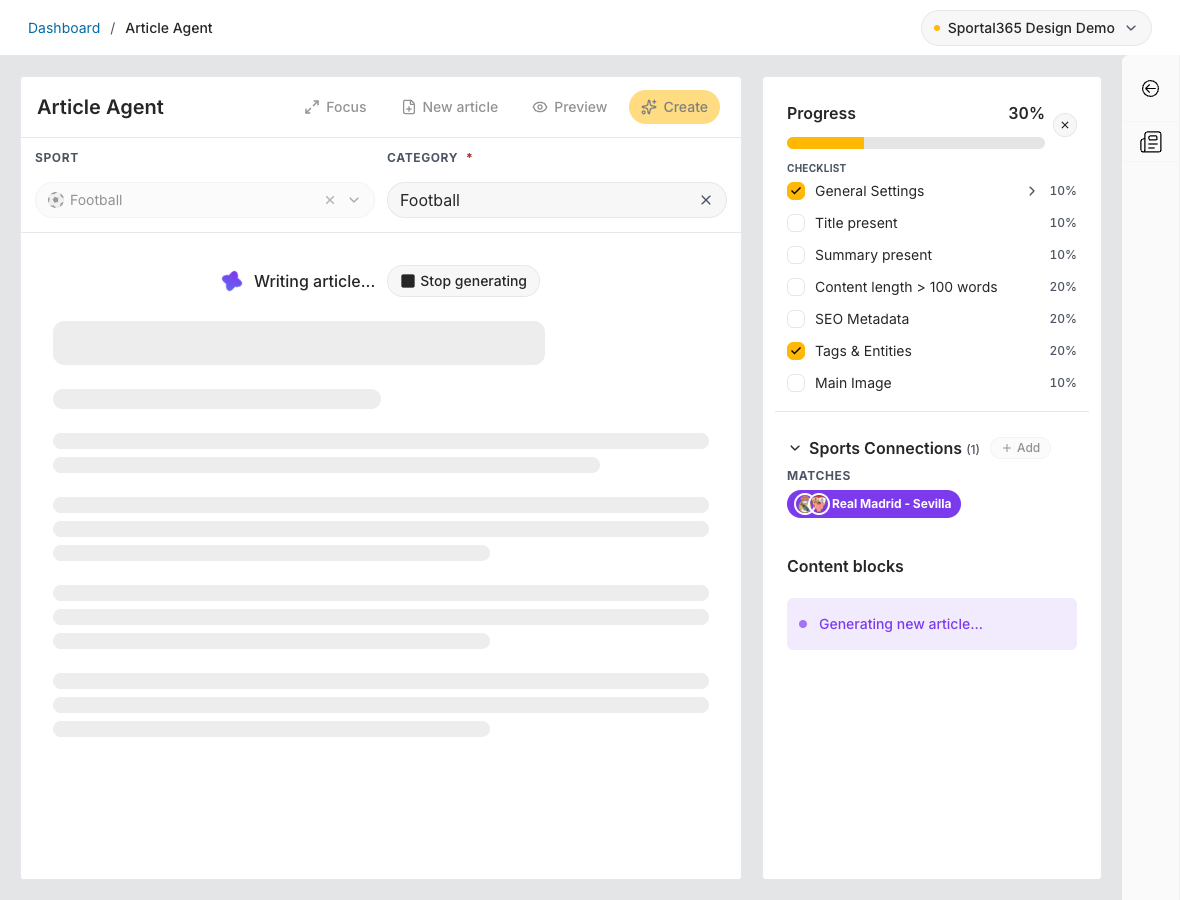 Real Madrid - Sevilla, and Content blocks shows "Generating new article..."." class="hs-image-align-center" width="900" style="width: 900px; height: auto; max-width: 100%;" loading="lazy">
The agent shows its progress (here, “Writing article...”) while it builds the article.
Step 5: Check the Progress, Sports Connections and Content blocks panels
The column on the right tracks the article:
- Progress — a checklist (General Settings, Title present, Summary present, Content length > 100 words, SEO Metadata, Tags & Entities, Main Image) with a percentage that rises as each item is completed.
- Sports Connections — the events, teams, players, and competitions linked to the article, grouped by type (TEAMS, PLAYERS, COMPETITIONS, MATCHES), including the ones the agent resolved from your prompt.
- Content blocks — while the agent works, this shows “Generating new article…”. When the draft is ready, it shows counts per type (for example Text, Content, and Widgets) and an outline of every block, each labeled with its type (for example TEXT, HEADING 2, SINGLE EVENT, or ARTICLE). Drag a row to reorder the blocks.
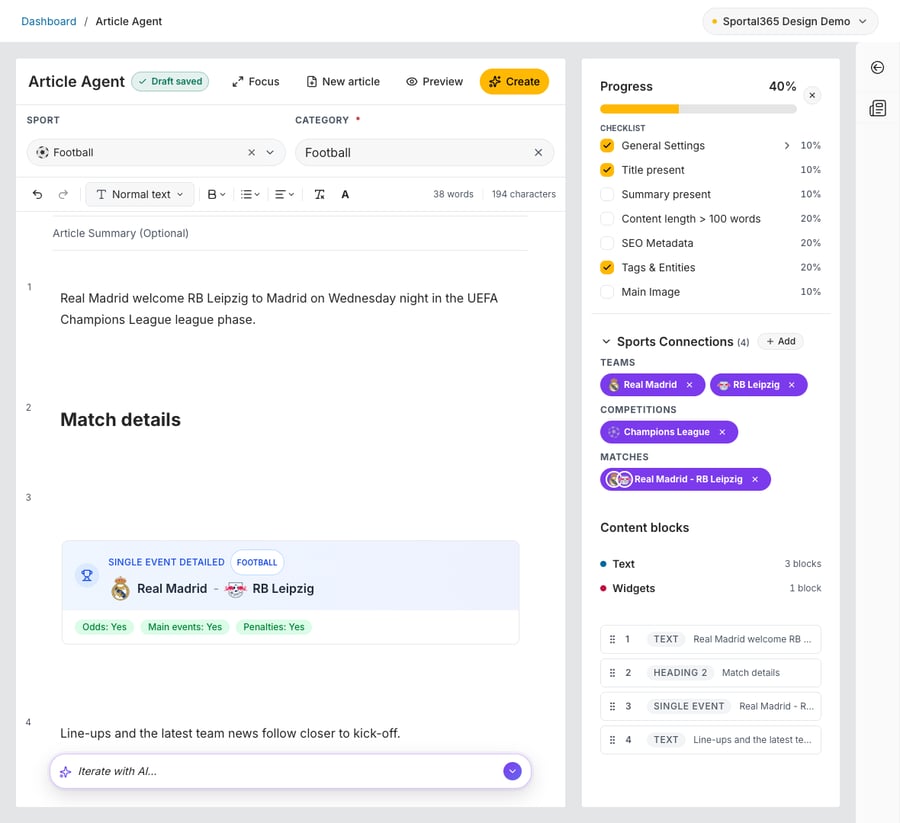
The Content blocks panel outlines the article’s structure, below the Progress checklist and the Sports Connections grouped by type.
Supported widgets
When building an article, the AI Article Agent can include any of the following sports widgets. Each widget name is followed by its system identifier. In the Content blocks panel, widgets are labeled with a short type name, such as SINGLE EVENT.
Football
- Single Event (Detailed) — football-single-event-detailed
- Match Center — football-match-center
- Lineups — football-lineups
- Odds — football-odds
- Stakes — football-stakes
- Team Match H2H (head-to-head) — football-team-match-h2h
- Timeline — football-timeline
- Team — football-team
- Player — football-player
- Standings — football-standings
- Top Scorers — football-top-scorers
- Most Decorated — football-most-decorated
Basketball
- Single Event — basketball-single-event
- Single Event (Detailed) — basketball-single-event-detailed
- Standings — basketball-standings
Note: Which widgets appear depends on the article’s content and the available sports data — a widget is only added when relevant data exists for the teams, players, match, or competition involved. Additional sports and widget types will be added over time — check the latest release notes for updates.
Step 6: Review the finished article
When generation completes, an Article generated notification reads “The agent finished writing — review the draft and iterate as needed.” The draft stays in the Article Agent with a Draft saved badge, which means it is kept in this browser tab; it is not saved to the CMS yet. Before you create the article:
- Review the text and widgets. You can edit any block directly.
- Below the article, check the AI Enrichment Proposals: SEO Metadata offers several options (Option A, B, C), each with an SEO title, meta description, URL slug, and keywords, and Main Image shows a suggested image, or a message that no suitable image was found (you can add one in the CMS after creating the article). Regenerate All requests new proposals.
- Use Preview to see how the published article will look, with the widgets rendered.
- To refine the draft, type an instruction in the Iterate with AI… bar at the bottom and submit it. Because your prompt rewrites the current article, you are asked to confirm (Edit This Article?) first.
When you are happy with the draft, click Create to save it as a new article in the CMS. An Article Created confirmation then appears with a Go to Article button.
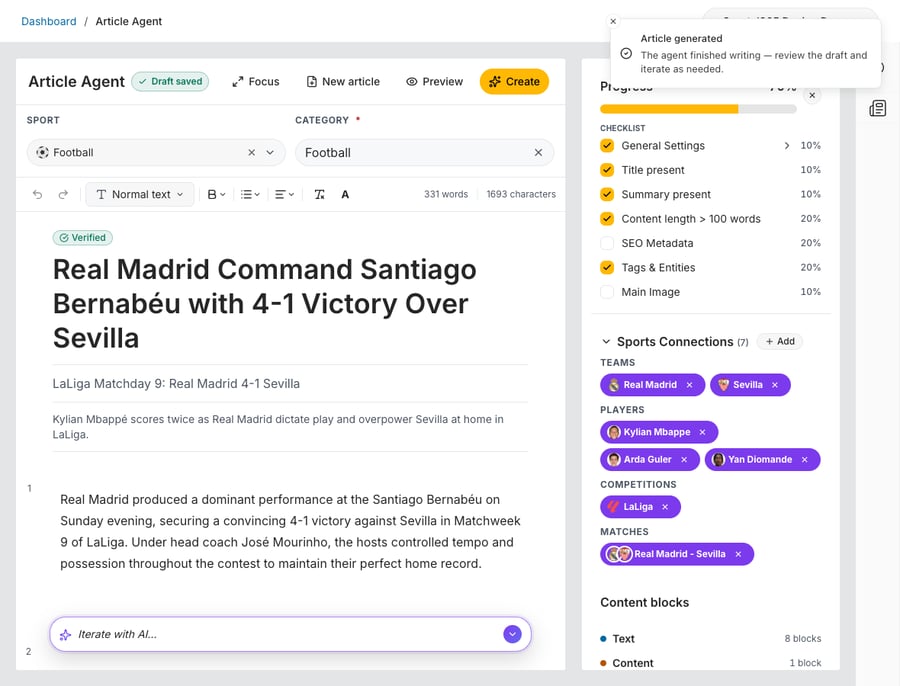
The finished draft in the Article Agent: the Article generated notification, the Verified badge, the Iterate with AI… bar, and the Create button.
Note: Check the badge above the title. Verified means the agent’s fact check passed; if the badge shows a number of unverified claims instead, check those claims before publishing. Always review the agent’s output — especially facts, scores, and the data shown in widgets — before going live.
Step 7: Edit and publish
After you click Create, selecting Go to Article in the confirmation opens the new article in the standard Edit Article screen, with the title, strapline, summary, body text, and embedded sports widgets all in place. From here you can:
- Edit any text block, heading, or widget.
- Adjust metadata in the side panels (General, Media, Tags, SEO, and so on).
- Run AI Suggestions for further widget and SEO recommendations.
- Save, preview, and publish when ready.
Tips for best results
- Be specific about the angle, tone, and key facts you want emphasized — clearer prompts produce more focused articles.
- Add the exact event, teams, or competition as Sports Connections when you know them, so the agent pulls the correct data and widgets.
- Use the Content blocks panel to confirm the agent included the sections and widgets you expected.
- Use Preview to check the widgets before you click Create.
- Always fact-check the draft and verify any flagged content before publishing.
- Use Iterate with AI to refine rather than starting over when the result is close.