![Sportal365 logo-4.png]](https://knowledge-base.sportal365.com/hs-fs/hubfs/Sportal365%20logo-4.png?height=40&name=Sportal365%20logo-4.png)
Videos are uploaded to the CMS and shared in three ways:
- Embed code
- Dugout (if your project uses the Dugout integration)
- Video URLs
As mentioned before, videos, articles, and galleries follow a similar process of creation with Sportal365 — combining text and media.
Preconditions
Before you start creating videos, you need to make sure the role you have been assigned in the system has the right permissions.
To be able to write, read, and delete videos, you need to have the following permissions for your profile:
- read_videos
- write_videos
- delete_videos
To learn how to find your permissions, see Roles and permissions.
Creating a video
Note that to create and save a video in the system, entering a Title, Main Category, and Video embed code is mandatory. Depending on your project settings, Main media may also be a mandatory field.
In the left sidebar, under CONTENT, select Videos > All videos, then select New Video.
Enter a title, strapline, and summary, then write your video's body text using the Body blocks.
Open the General panel and select a Main Category — this is mandatory.
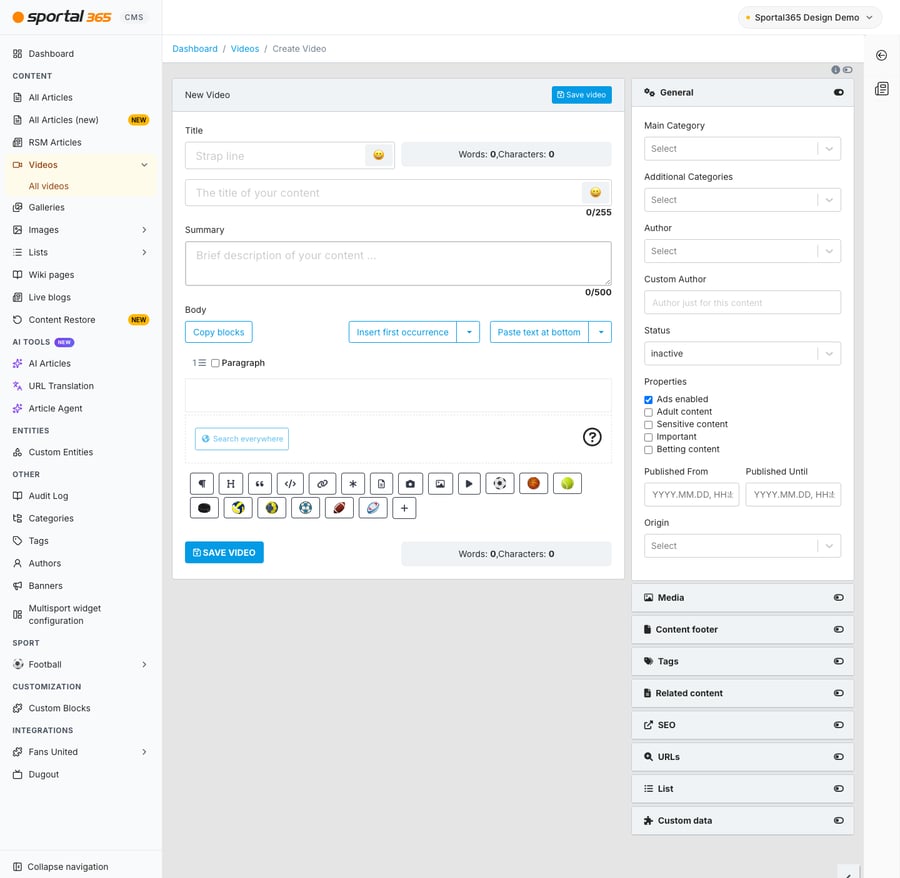
4. To add the video itself, do one of the following in the right-hand panel:
To upload a video with embed code, open the Media panel > Choose Main Media > Embed video.
To upload from Dugout, open the Media panel > Choose Main Media > Embed video > Search Dugout videos (shown below the Video embed box if your project uses the Dugout integration).
To share a video through Video URLs, open the URLs panel > Video URLs, select Add URL, choose the video quality and enter the link in URL for video.
Remember, without an embed code you cannot save your video.
5. When done, select Save video to save your work.