![Sportal365 logo-4.png]](https://knowledge-base.sportal365.com/hs-fs/hubfs/Sportal365%20logo-4.png?height=40&name=Sportal365%20logo-4.png)
When you delete an article in All Articles (new), it is not removed for good straight away. It is moved to Trash and listed on the Content Restore page, where you can find it and restore it, or delete it permanently.
To delete articles, your role needs the delete_articles permission. To check your permissions, see Roles and permissions.
Moving an article to Trash
- In the left sidebar, under CONTENT, select All Articles (new) and find the article. Use the search field or the Filters panel if needed; see Using the new All Articles list.
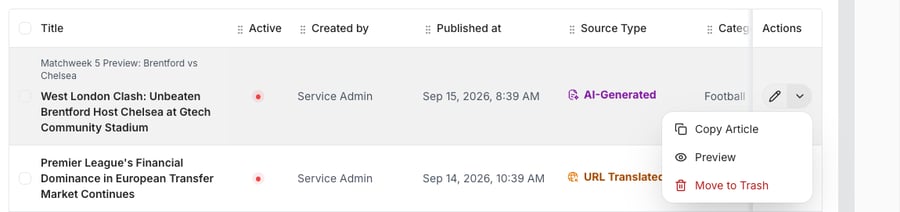
- In the article's row, select the arrow next to the pencil (More actions), then select Move to Trash.
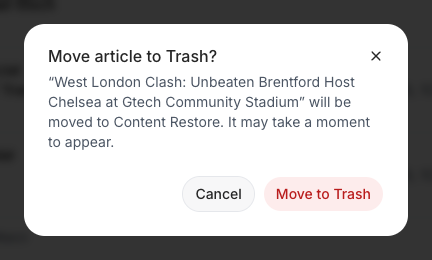
- The dialog Move article to Trash? tells you that the article will be moved to Content Restore and that it may take a moment to appear there. Select Move to Trash to confirm, or Cancel to keep the article.
- The notification Article moved to Trash confirms that the article was moved to Content Restore, and the article no longer appears in the list.
If you have an Admin or Super admin role, you can move several articles to Trash at once: select them in the list and use the trash-can button (Bulk delete) in the toolbar. See How to bulk edit articles.
Finding deleted articles
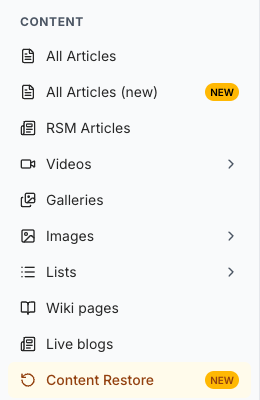
- In the left sidebar, under CONTENT, select Content Restore. It is marked NEW.
- The Content Restore page lists your deleted articles, the most recently deleted first, 20 per page. For each article you see the Title, the Previous status (a green dot if the article was active when it was deleted, a red dot if it was inactive), Created by and the Actions.
- The Filters panel is open on the right. Narrow the list with:
- PREVIOUS STATUS: All, inactive or active,
- TAGS, CATEGORIES, AUTHORS and ARTICLE TYPE,
- ORIGIN: where the article came from, for example Internal, External or AI Article Generation Origin,
- DELETED DATE: select From or To and pick a day in the calendar.
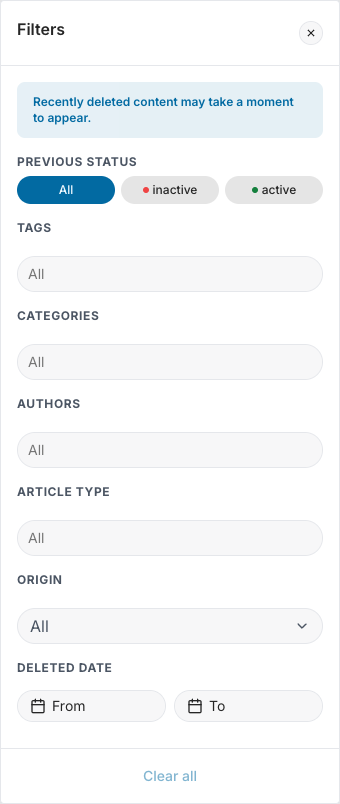
- The list refreshes as soon as you choose a filter, and the panel header shows how many filters are active. Select Clear all to reset them.
- To see more columns, Published at, Source Type and Category, close the panel with the X. Select Filters to open it again.
If no deleted article matches your filters, the list shows No deleted articles match the current filters.
Recently deleted content may take a moment to appear. If an article you have just moved to Trash is not listed yet, wait a moment and check again.
Restoring an article
- In Content Restore, find the article.
- In its row, select the restore button (the circular arrow, Restore) in the Actions column.
- The dialog Restore article? asks you to confirm. After you confirm, the notification Article restored confirms that the article was restored.
A restored article returns with its saved publication state, so an article that was active when it was deleted may become published again. References to the article from other content and from editorial lists are not recovered; if you need them, add the article to that content or those lists again.
Restoring several articles at once
- Tick the checkbox at the start of each article's row, or the checkbox in the header to select all articles on the page. The header shows how many articles are selected, for example 1 selected, and Unselect all clears the selection.
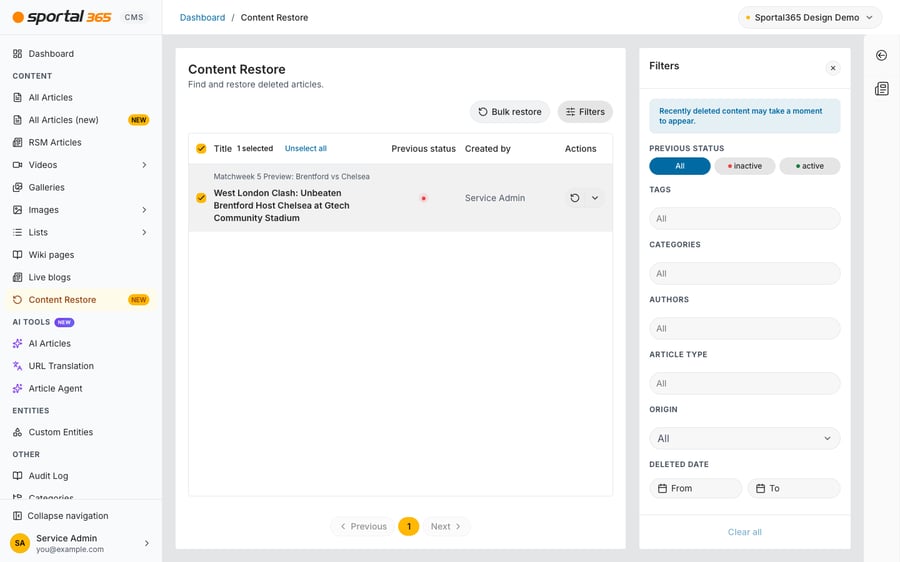
- Select Bulk restore.
- Review the selection in the dialog and confirm with Restore articles. The articles are restored in a background job that you can follow in Jobs.
Bulk restore is available to users with an Admin, Super admin or Editor role. With no articles selected, Bulk restore opens the Jobs panel (View bulk operations history), where you can follow the bulk operations of your project. To learn more about Jobs, see How to bulk edit articles.
Deleting an article permanently
- In Content Restore, find the article.
- In its row, select the arrow next to the restore button (More actions), then select Delete permanently.
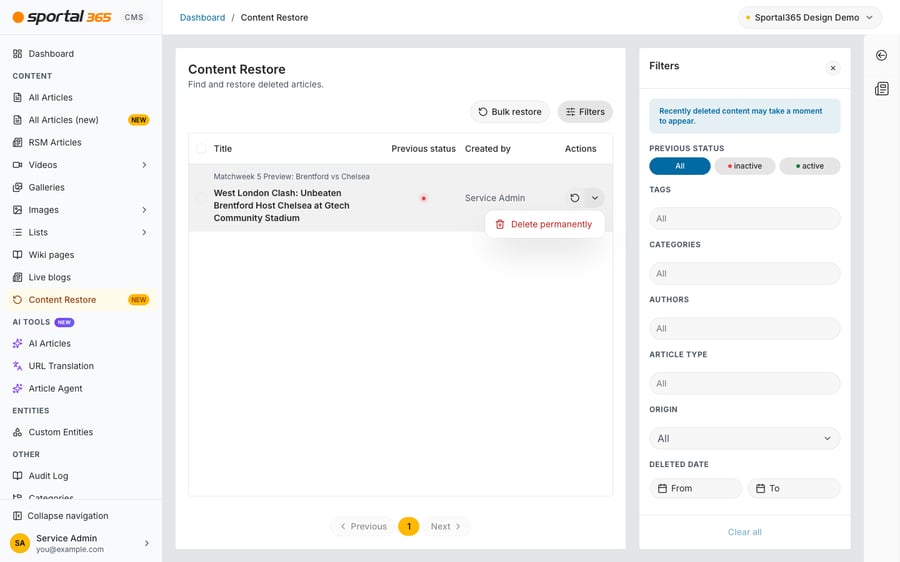
- The dialog Delete article permanently? asks you to confirm. Confirm only if you are sure you no longer need the article.
Deleting an article permanently cannot be undone. The article is removed from Content Restore and can no longer be restored.