![Sportal365 logo-4.png]](https://knowledge-base.sportal365.com/hs-fs/hubfs/Sportal365%20logo-4.png?height=40&name=Sportal365%20logo-4.png)
Duplicating a post is a feature that lets journalists and editors clone an existing post, edit it, and save it as new. It speeds up content creation in situations like covering pre- and post-game events (e.g. press conferences) or a developing story.
Note that you can duplicate Articles, RSM Articles, Videos, and Galleries.
How to duplicate an article, video, or gallery?
To duplicate a post:
-
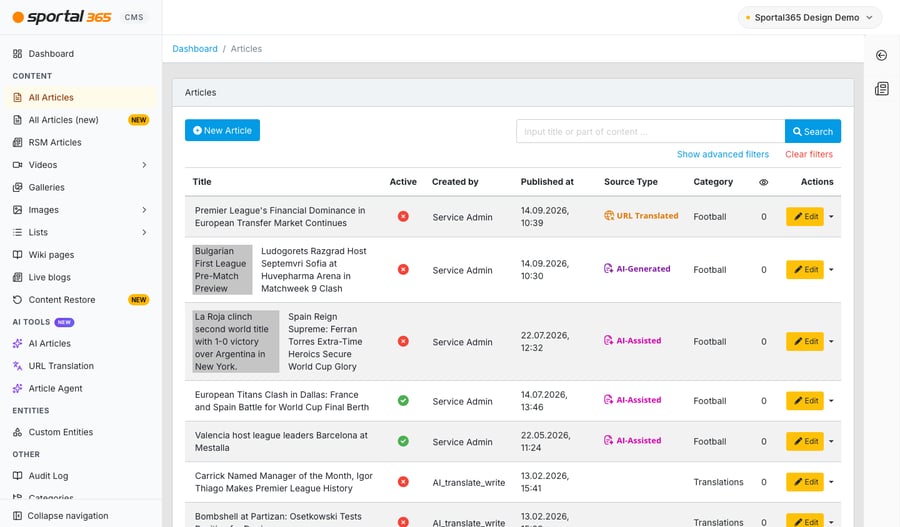
In the left sidebar, under CONTENT, select All Articles, RSM Articles, Videos > All videos, or Galleries.
-
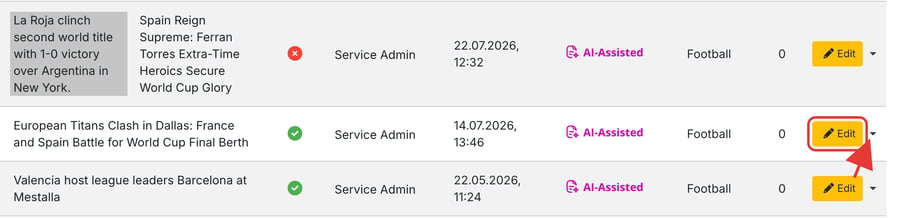
Find the post you want to duplicate. Its yellow Edit button is in the Actions column at the right of the row.
-
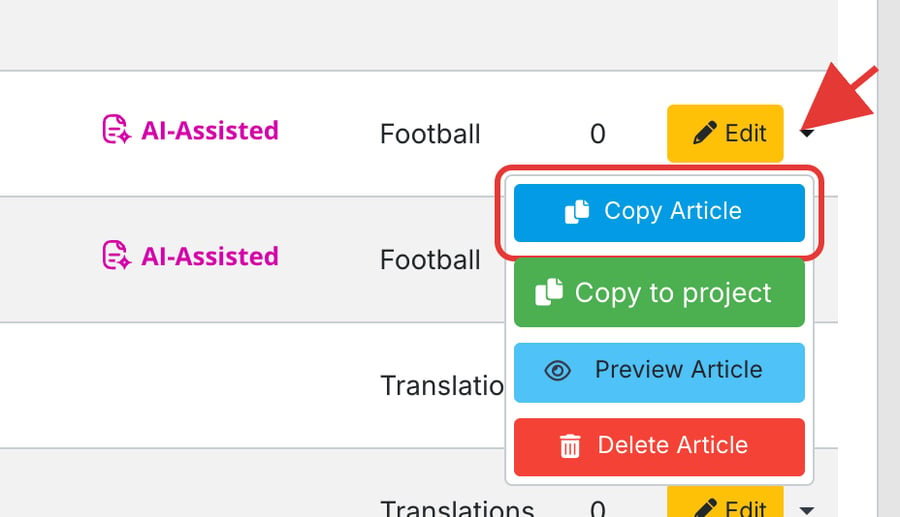
Open the menu with the arrow next to the Edit button and select Copy Article.
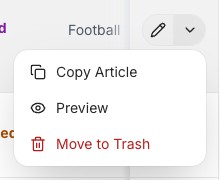
If you work in All Articles (new), select the arrow next to the pencil icon in the article's row (More actions), then select Copy Article. This menu has no Copy to project option.
-
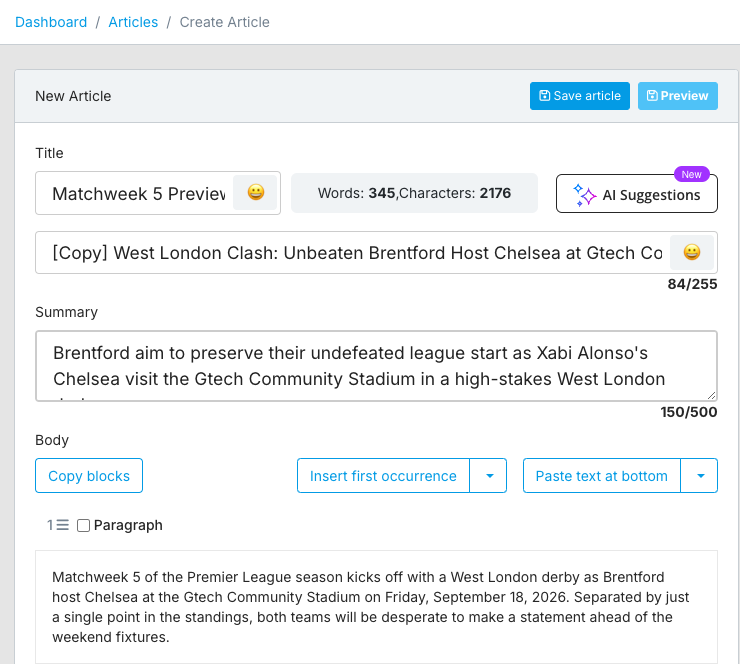
Once you select the copy option, a new Create Article screen opens with the content of the original article already filled in. The word [Copy] appears in front of the post’s title to indicate that this is a duplicated post.
-
When you are done editing the content of your copied post, click Save article.
Note that you need to save the duplicated post to preserve it. It is not saved automatically when you clone it.