![Sportal365 logo-4.png]](https://knowledge-base.sportal365.com/hs-fs/hubfs/Sportal365%20logo-4.png?height=40&name=Sportal365%20logo-4.png)
Similarly to Articles and Videos, to create a Gallery you need to combine text and media.
Preconditions
Before you start creating galleries, you need to make sure the role you have been assigned in the system has the right permissions.
To be able to write, read, and delete galleries, you need to have enabled the following permissions for your profile:
read_galleries
write_galleries
delete_galleries
To learn how to find your permissions, see Roles and permissions
Creating a gallery
Note that to create and save a gallery in the system, entering a Title and Main Category is mandatory. Also, depending on your project settings, adding main media may be mandatory.
In the left sidebar, under CONTENT, select Galleries, then select New Gallery.
On the Content tab, enter a gallery title, strapline, and summary, and write any body text.
Open the General panel and select a Main Category — this is mandatory.
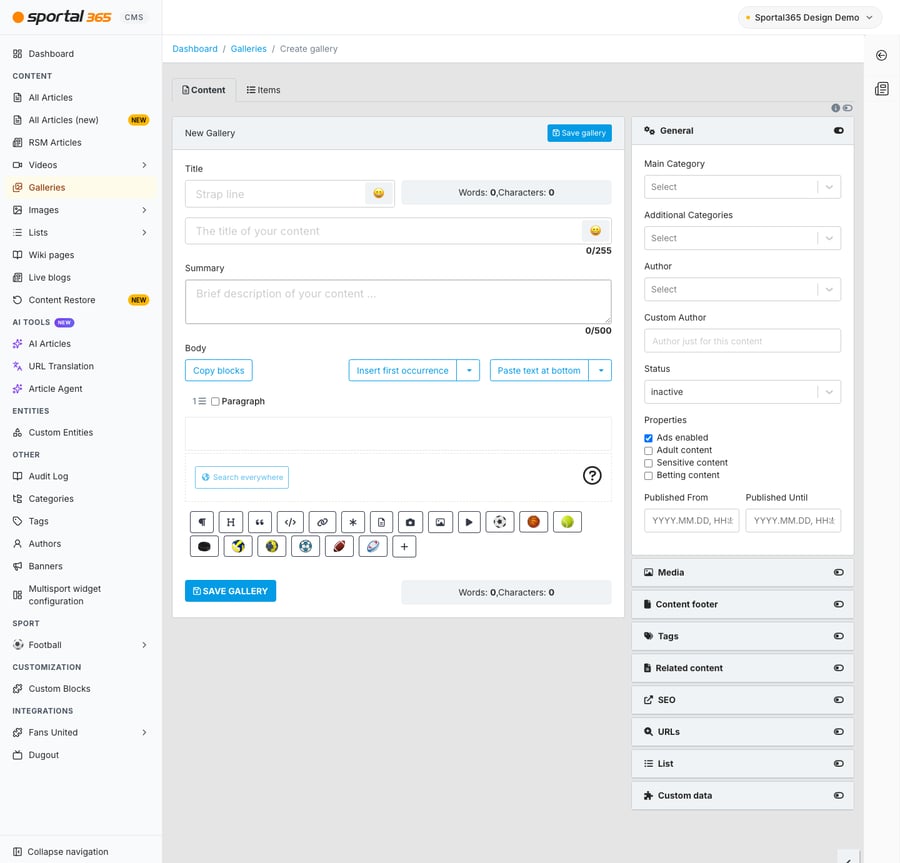
4. When done, select Save gallery. Switch to the Items tab to add images to the gallery — see Images for reference.