![Sportal365 logo-4.png]](https://knowledge-base.sportal365.com/hs-fs/hubfs/Sportal365%20logo-4.png?height=40&name=Sportal365%20logo-4.png)
The introduction of Audit log allows several authors to work on a single piece of content without losing track of each other’s edits. You can access the audit log for a specific article, video or gallery, as well as for a specific author.
Audit log for a specific Article, Video, Gallery
To see the audit log for a specific article, video, or gallery:
-
Select an Article (Video or Gallery).
-
When you open it, select the Audit log icon in the top right corner. A log opens above the title and lists each time the content was created or updated, with the admin who did it and the date and time.
Note that you can see all the details related to creating and updating an article.
Audit log for a specific author
While you can see the audit log for a specific type of content, you can also choose to see the entire edit history of a specific author based on the type of content they’ve created/updated/deleted, and when they’ve created it.
To do that:
-
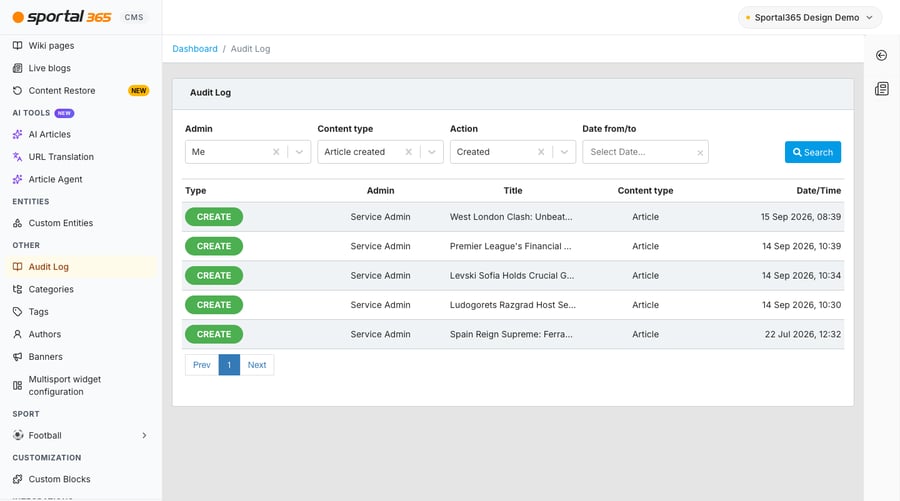
In the left sidebar, under OTHER, select Audit Log.
-
Select an Admin. Choose Me to see your own activity. Content type and Action become available once an admin is selected and are pre-filled with Article created and Created.
-
Optionally, change the Content type and Action, and set Date from/to by clicking a start day and then an end day in the calendar.
-
When done, select Search. The results show the Type, Admin, Title, Content type and Date/Time of each entry, 20 entries per page.
To see everything an admin did, clear Content type and Action with the x in each field before you select Search. Otherwise, the results are limited to the selected Content type and Action (by default, the articles that admin created).