![Sportal365 logo-4.png]](https://knowledge-base.sportal365.com/hs-fs/hubfs/Sportal365%20logo-4.png?height=40&name=Sportal365%20logo-4.png)
The PostFast integration lets your team publish content from the CMS to your social networks through PostFast, a social media scheduling service. You buy your PostFast plan, connect your social accounts and create an API key in PostFast yourself. Sportal365 switches on Social publishing for your project, and you then enter the key in the CMS. This guide is for your admin and takes you through these steps from start to finish.
What the integration gives you
- Social publishing in the CMS: a page with the tabs Posts, Accounts, Analytics and Settings, where you review, schedule and track the posts PostFast distributes from your content.
- The Post to social button in the editors, next to Notify users. The button comes with the integration.
- Publishing rights by role: users with the Admin or Editor role publish directly, and users with the Journalist role send posts for approval.
- Four networks: X, Facebook, Instagram and LinkedIn. PostFast supports more networks, but the CMS posts only to these four and ignores accounts of other networks.
How much does it cost
You buy your PostFast plan and pay for it directly to PostFast. PostFast sets the price, which depends on the plan you choose. See the plans at postfa.st.
Before you begin
- Your CMS user has the Admin or Editor role. Only these roles can change the Social publishing settings, where the API key is entered.
- You can sign in to each social account you want to connect, because PostFast asks you to log in to the network.
- You can write to Sportal365 support at support@sportal365.com.
Ask Sportal365 support to switch it on
Social publishing is switched on for your project after a request to Sportal365 support. Write to support@sportal365.com and say that you want to use the PostFast integration. The Post to social button comes with the integration, so there is nothing else to install.
Set up PostFast
To prepare PostFast:
- Go to postfa.st, create your PostFast account and choose a plan. You pay for the plan directly to PostFast.
- Sign in to PostFast and open the workspace you want to use for your CMS project. Each workspace has its own social accounts and its own API key, and the CMS posts to the accounts of the workspace whose key you enter. To switch workspace, use the workspace switcher above the left menu.
- In the left menu, under Configuration, select Accounts. Select Add Social Account, choose the platform in the list and follow the steps on the platform to connect your account. Repeat for every account you want to post to.
To let a colleague connect an account without access to your workspace, select Public Link on the same page and send them the link. The CMS can only post to X, Facebook, Instagram and LinkedIn accounts.
- In the left menu, under Settings, select API. Select Generate API Key and copy the key straight away. Only a workspace admin can generate it.
A workspace has one API key. If you generate a new one (the button then reads Regenerate API Key), the old key stops working at once.
Enter the key in the CMS
To connect the CMS to PostFast:
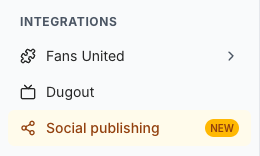
- In the CMS sidebar, in the INTEGRATIONS group, select Social publishing.
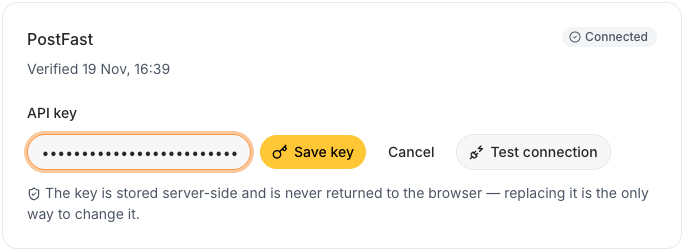
- Select the Settings tab. The PostFast card has an API key field.
- Paste the key into API key and select Save key. If a key is already saved, the field shows it masked: select Replace first, then paste the new key.
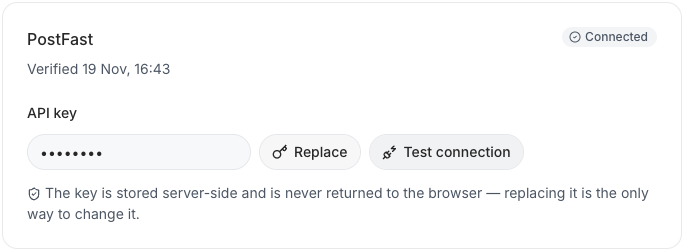
- Select Test connection. A Connection checked message appears, the card shows the Connected badge, and the time of the check appears after Verified.
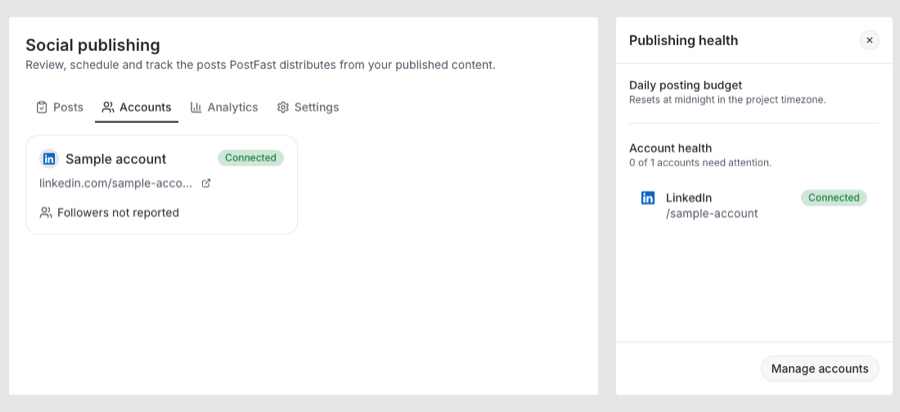
- Select the Accounts tab. Every connected X, Facebook, Instagram or LinkedIn account of the workspace appears as a card. A healthy account shows the Connected badge; an account that needs reconnecting shows a different status (see the section on problems below). An account you connect in PostFast later appears here too.
What you see in the CMS
When the integration is on, the Post to social button appears on the edit screen of a saved item, after Notify users.

Admins and Editors publish directly with it. Journalists send posts for approval. To see how editors write, schedule and approve posts, read Social Publishing with PostFast.
Daily posting limits
PostFast sets the daily posting limits, for each social account. You do not set them in the CMS. They are described in the PostFast Fair Usage Policy, which can change, so check the policy for the current numbers. High-volume news or sports publishers can ask PostFast support for a higher limit for a Facebook page, Instagram account or Threads profile.
Keep the key up to date
If you generate a new API key in PostFast, the old one stops working. Enter the new key in the CMS: open Social publishing > Settings, select Replace, paste the key, select Save key and then Test connection.
What should you do if you have problems?
For problems with the integration, write to Sportal365 support at support@sportal365.com. For questions about your PostFast plan, your billing or your PostFast account, contact PostFast support from the Support item in the PostFast menu.
Good to know
- The CMS never shows the API key in full after you save it. The key is stored on the server, and replacing it is the only way to change it.
- Users who are not Admin or Editor can open Social publishing but cannot change its Settings.
Troubleshooting
- The page says PostFast is not available. The message under it gives the reason. Check that your PostFast plan is active and that the key in Settings is the current one, then select Test connection. If the message stays, write to Sportal365 support.
- An account shows that it must be reconnected. Reconnect the account in PostFast. The CMS cannot reconnect it.
- An account I connected in PostFast is missing in the CMS. The CMS lists only X, Facebook, Instagram and LinkedIn accounts of the workspace whose key you entered. Accounts of other networks are ignored.
- I cannot change the API key. Only users with the Admin or Editor role can change Settings. Ask an admin of your project.