![Sportal365 logo-4.png]](https://knowledge-base.sportal365.com/hs-fs/hubfs/Sportal365%20logo-4.png?height=40&name=Sportal365%20logo-4.png)
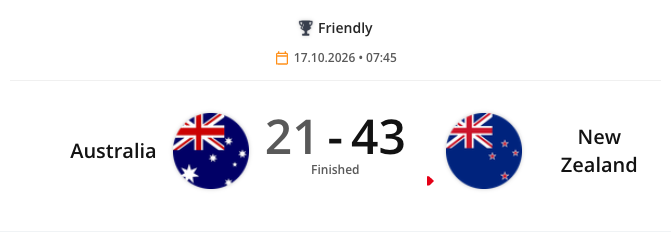
The Single Event Detailed widget shows one rugby match in detail; with Display Scoreboard checked, it adds the half-by-half breakdown.
The fastest way to add a Rugby widget: select the Rugby icon in the quick-add row below the article body — no need to open the full block picker and search a category list.
Preconditions
- Your project must have the Rugby feature enabled. Widget categories are switched on per project, so if Rugby widgets does not appear in the block picker, ask your administrator to enable it.
- You need permission to create or edit articles.
- This widget is match-scoped, so you need a specific match.
Adding the Rugby Single Event Detailed Widget to a post
To set up the widget:
- Open an article for editing, or create a new one.
- Below the blocks in the article body is a row of quick-add buttons: the content blocks first, then one icon for each sport enabled on your project, then +. Hover an icon to see its name — the Rugby icon is hovered here.

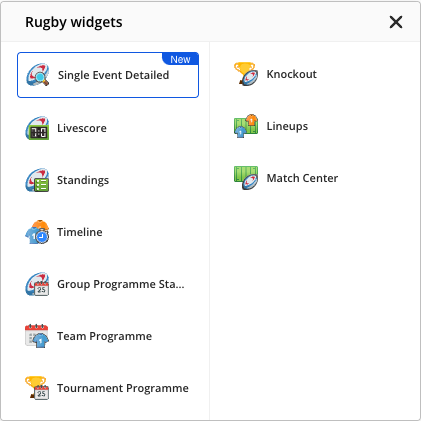
- Select the Rugby icon, then choose Single Event Detailed from the widget list that opens.
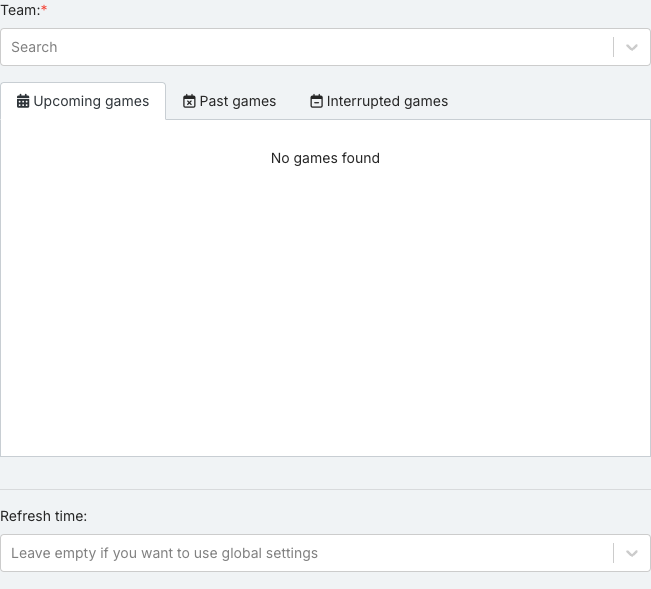
- Set the widget options. Team controls what it shows.
- Check the options are the ones you want. Some fields depend on others, so a list can be empty until you set the field above it.
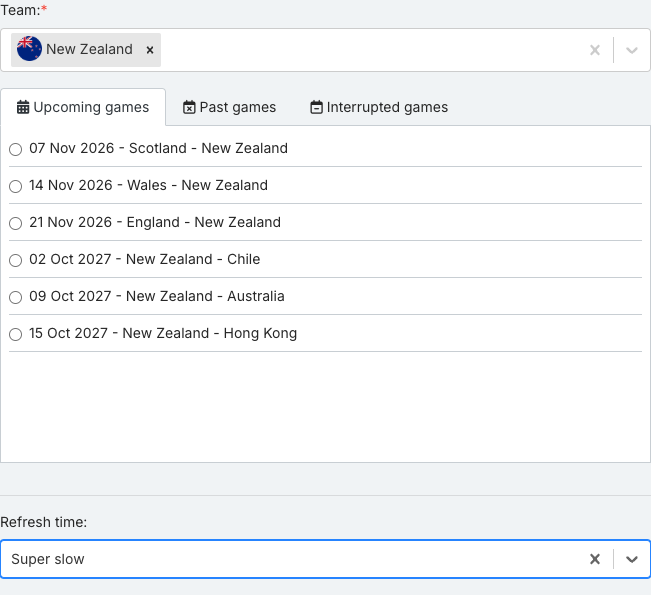
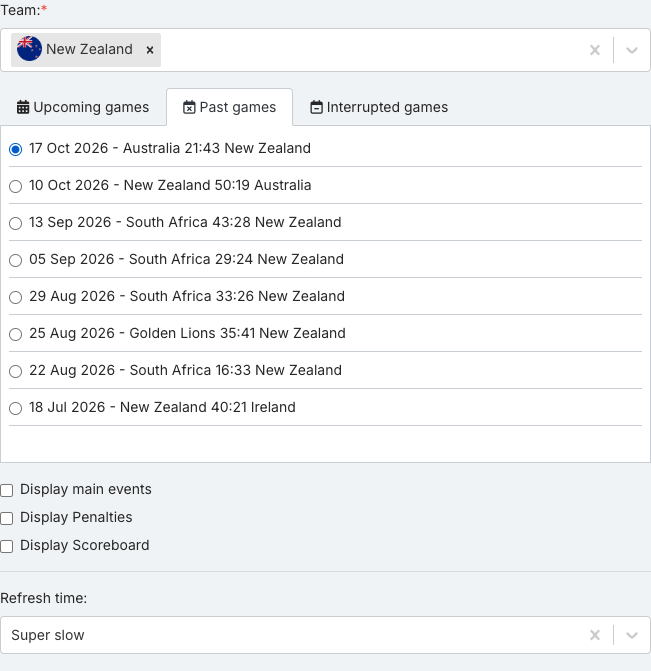
- The match list has Upcoming games, Past games and Interrupted games tabs. They read “No games found” until a team is set; then Upcoming games lists the team’s scheduled matches and Past games its finished ones. If Upcoming games stays empty, the team has no scheduled matches — open Past games. Select the specific match you want — the widget has nothing to show until one is checked. Once a match is checked, Display main events, Display Penalties and Display Scoreboard appear below the list.
- When done, select Save block.
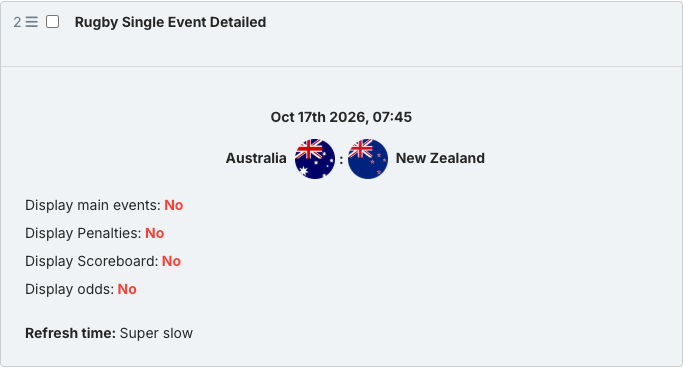
- Hover the saved block. Of the controls that appear (Copy embed code, Preview, Edit and Remove), select Preview to see the real widget.
Rugby Single Event Detailed Widget options
- Team (required) — The team whose data you want to show. Type to search.
- Display main events — Highlights standout match events directly on the match card. It appears once a match is selected.
- Display Penalties — Adds penalty details to the match card, where the match data includes them. It appears once a match is selected.
- Display Scoreboard — Shows a half-by-half score breakdown (H1 and H2) underneath the match result. It appears once a match is selected.
- Refresh time — Controls how often the published widget refetches its data. Leave empty to use your project’s global refresh setting.
What the Rugby Single Event Detailed Widget shows
With Display Scoreboard checked, the match card adds:
- H1 / H2 — half scores: points scored by each team in each half
- S — score: the final score, which decides the match
Preview of the Rugby Single Event Detailed Widget
By default the widget shows just the match result. Check Display Scoreboard to add the half-by-half breakdown underneath it.
Good to know
Only the preview shows the real widget. The collapsed block and the options panel show a CMS summary card instead — always check preview before publishing.
- The preview area is narrower than a published page, so the widget uses its compact layout there and may hide columns that the published version shows.
- The widget always renders whichever version of the sports widgets library your project is on. There is no version to set.
- This covers Rugby Union and Rugby League alike — which competitions and matches are available depends on your project’s data, not on the widget itself.
- If your development team integrates this data directly through the API rather than through this CMS, the sport key to use is rugby_union, not rugby — the CMS handles this translation for you automatically.