![Sportal365 logo-4.png]](https://knowledge-base.sportal365.com/hs-fs/hubfs/Sportal365%20logo-4.png?height=40&name=Sportal365%20logo-4.png)
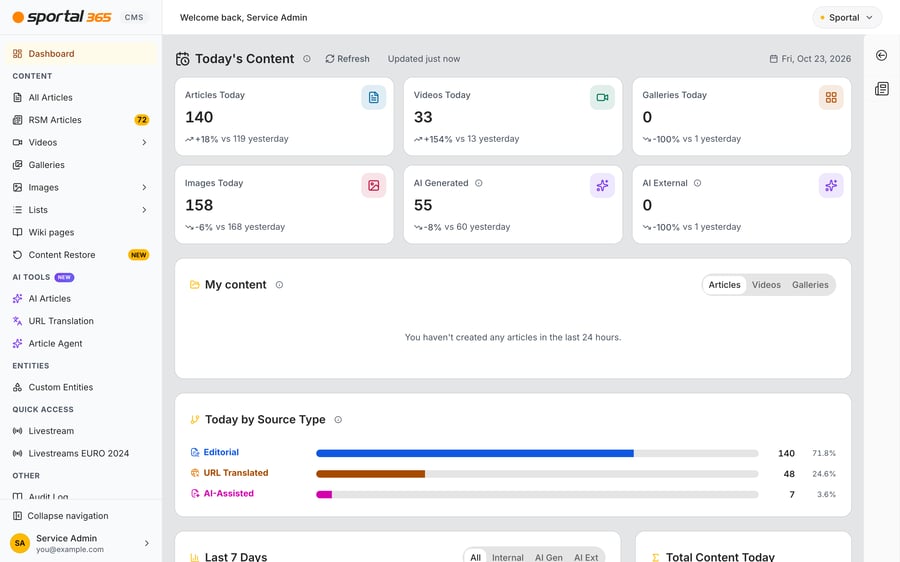
The Dashboard is the first page you see when you log in to the Sportal365 CMS. It shows at a glance how much content your project published today compared with yesterday, how the last 7 days looked, how much of your articles are produced with AI, which categories get the most articles and how the last 12 months developed. The Dashboard only reads data: nothing you do on it changes your content.
This article walks through the Dashboard from top to bottom and explains what every number counts.
Opening the Dashboard
- Log in to the CMS. The Dashboard opens automatically.
- To come back to it later, select Dashboard at the top of the left sidebar, select the sportal365 logo above it, or select Dashboard in the breadcrumb of any other page. When you switch to another project, you land on the Dashboard of that project (see How to switch between projects).
- Wait a few seconds. The cards show gray placeholders while their numbers load, and the sections further down the page load when you scroll to them.
The top bar greets you with Welcome back followed by your name. The sections of the Dashboard, from top to bottom, are:
- Today's Content: six cards that compare today with yesterday.
- My content: what you created in the last 24 hours.
- Today by Source Type: how today's articles were produced.
- Last 7 Days and Total Content Today: a daily chart and one total for today.
- AI share of articles: the share of AI articles this month.
- Source Type Mix and Category coverage: this month by source type and by category.
- Monthly Trends (Last 12 Months), Monthly Breakdown and Daily Breakdown: three panels that stay closed until you open them.
How the numbers are counted
A few rules apply to the whole Dashboard:
- Your project's time zone. "Today" starts at midnight in the time zone of your project, not in the time zone of your browser. The same applies to "yesterday", the last 7 days and the months.
- Fixed time windows. The Dashboard has no date picker. It always shows today, the last 7 days, the current month so far and the last 12 months.
- The whole project. Every number counts the content of the whole project, whoever created it. Only My content is personal.
- Active content. The counts include active (published) content. Inactive items and drafts are not counted. The exception is My content, which lists your items in any status.
- Interface language. The Dashboard follows the language of the CMS interface, English or Bulgarian (see How to switch between projects).
Today's Content
The first row has six cards. Each card counts the active items of one kind that were published today, from midnight in your project's time zone up to now:
- Articles Today: articles, not counting the ones that are counted on the two AI cards.
- Videos Today: videos.
- Galleries Today: galleries.
- Images Today: images.
- AI Generated: articles whose Source Type is AI-Generated, AI-Assisted or URL Translated.
- AI External: transcreated articles, the AI-assisted content that comes in from external feeds (RSM articles).
Articles Today does not include the articles counted on AI Generated and AI External. This is why the number can be lower than the number of articles you see in the All Articles list for the same day. To get the number of all articles published today, add Articles Today, AI Generated and AI External together. Total Content Today further down is not an article count: it adds videos, galleries and images as well.
Reading a card
Each card shows the number for today in large type. Below it, an arrow and a percentage compare today with the same time yesterday, followed by the number for yesterday, for example +18% vs 119 yesterday. An arrow pointing up means more than at this time yesterday, and an arrow pointing down means fewer. Comparing up to the same time of day keeps the comparison fair: at 10:00, today is compared with yesterday's total at 10:00, not with the whole of yesterday.
- A green New badge replaces the percentage when nothing had been published by this time yesterday, but something has been published today.
- 0% on its own means that today and yesterday are both zero.
- A dash instead of a number means the number could not be loaded. See "When numbers are missing" below.
Above the cards, you find:
- The title with an (i) button that explains the time zone rule.
- Refresh, which reloads every section of the Dashboard, including the monthly ones. The button is disabled and its icon spins while data loads.
- A freshness label, Updated just now, which later becomes Updated 1 min ago, Updated 1 h ago and so on.
- Today's date in your project's time zone, for example Fri, Oct 23, 2026.
You do not have to refresh by hand. While the Dashboard tab is open and visible, the numbers in Today's Content update on their own every 5 minutes. At midnight in your project's time zone, the date and the cards roll over to the new day.
Seeing today against yesterday in detail
- Select a card, for example Articles Today. You can also focus the card title and press Enter or Space. A window opens with a title that names the card, for example Articles — today vs yesterday.
- At the top, read Today and Yesterday with the percentage change. Yesterday is counted up to the same time of day as now.
- Under By author, see who published the most today: the top 10 authors, each with a bar, today's count and the difference compared with yesterday (for example +8 or -3, or a dash when nothing changed).
- Under By category, see the top 10 primary categories in the same way.
- Under By hour (project time), read the chart with one pair of bars for each hour of the day, Today and Yesterday. The hours 00, 06, 12, 18 and 23 are labeled, and hours that have not happened yet are empty. Point at a bar to see the exact counts for that hour.
- To close the window, select the X (Close) at its top right. Only the contents of the window scroll, so the title stays in view.
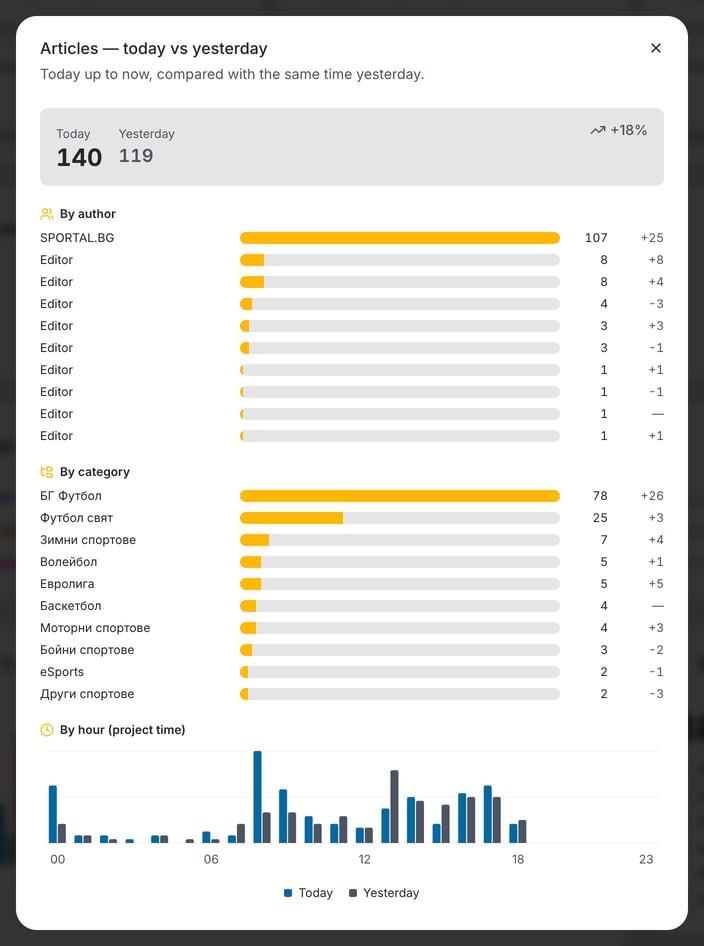
The windows of the other cards, for example Videos — today vs yesterday or AI Generated — today vs yesterday, follow the same layout.
An article with several authors counts once for each of its authors, so the author counts can add up to more than the total. Items without a named author are listed under Unattributed, and items without a primary category under Uncategorized. When the list of articles is very long, the total can show with a plus sign (for example 500+), the percentage is left out and a note says that the breakdowns are based on a partial list and may undercount.
A card opens this window only if you have permission to read that type of content. Otherwise its title is plain text. See "Permissions" below.
My content
My content lists everything you created in the last 24 hours, in any status (drafts, scheduled and inactive items included), newest first. It is a rolling 24 hours, not the calendar day, so in the morning it still shows what you created yesterday afternoon.
- Under Today's Content, find the My content card.
- Select Articles, Videos or Galleries in the top right of the card. The Dashboard remembers the tab you chose in this browser.
- Read the list. For articles, the columns are Title, Active, Published at, Source Type, Category, Views and Actions. Videos and galleries have the same columns without Source Type.
- To open an item in the editor, select its title or the Edit Article, Edit Video or Edit Gallery button in the Actions column.
Good to know:
- When the card is narrow, the table shows fewer columns. Point at a row to see a small preview with the published date, the source, the category and the number of views.
- The Views column appears only on projects that have content statistics set up.
- The title and the edit button work only if you have permission to edit that type of content. Without it, the rows are plain text.
- Under the list, a line such as 3 items in the last 24 hours counts the rows. If the list is very long, the line reads Showing 37 items — some from the last 24 hours may be missing instead. The number is the count of rows listed, and it varies.
- When you have not created anything of that type, the card says You haven't created any articles in the last 24 hours. (or videos, or galleries).
- To copy an article or move it to the trash, use the article list. See Using the new All Articles list.
Today by Source Type
Today by Source Type shows how the articles published today were produced. Each row is one source type that has articles today, largest first, with the same colored label as in the article list, a bar, the number of articles and the share of today's articles with one decimal, for example 71.8%. The source types are:
- Editorial,
- URL Translated,
- AI-Generated,
- AI-Assisted,
- Transcreated,
- RSS Sync and RSS Translated,
- Unspecified, for articles with no source type or a source type the Dashboard cannot classify.
Source types with no articles today are not listed. When there are no articles at all, the card says No articles in this window. The AI Generated card above adds up the AI-Generated, AI-Assisted and URL Translated rows.
The image below also shows Last 7 Days and Total Content Today, which the next section describes.
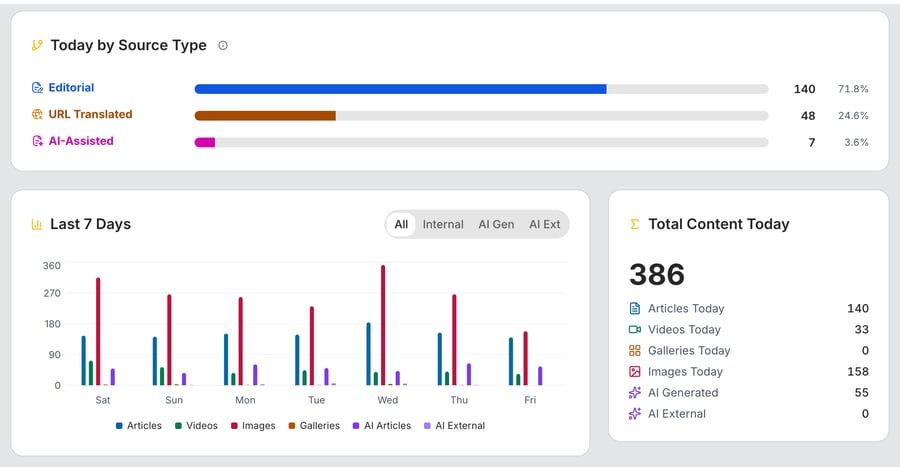
Last 7 Days and Total Content Today
Last 7 Days is a bar chart of the 7 days that end today, from the day of the week at the left to today at the right. Today's bars show the day so far. Point at a bar to see the exact count for that day.
- In the card header, select a tab to choose what the chart shows:
- All draws all six series: Articles, Videos, Images, Galleries, AI Articles and AI External.
- Internal draws only Articles.
- AI Gen draws only AI Articles.
- AI Ext draws only AI External.
- The chart redraws with its own scale, so a small series is easy to read when you select its tab. The chart returns to All when you reload the page.
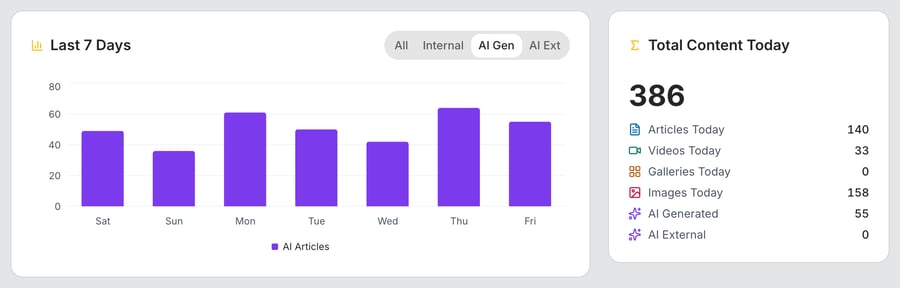
Total Content Today, next to the chart, shows one large number: the sum of the six cards of Today's Content, so it counts articles, videos, galleries and images together. Below it, a list shows the number of each card: Articles Today, Videos Today, Galleries Today, Images Today, AI Generated and AI External.
Charts and tables use the name AI Articles where the cards use AI Generated. Both names stand for the same figure. The tabs AI Gen and AI Ext are short for AI Generated and AI External.
AI share of articles
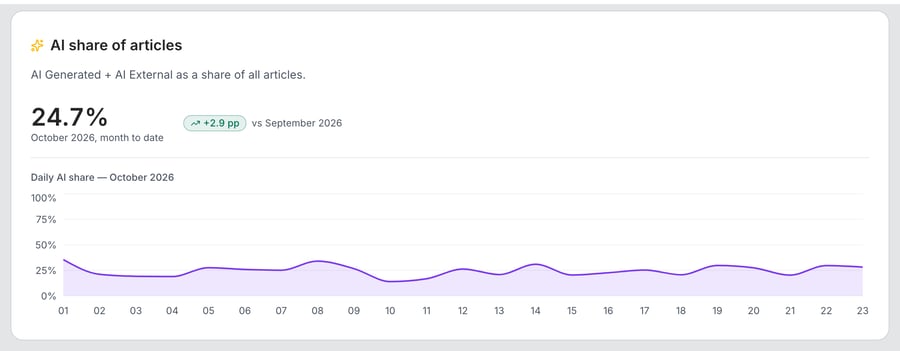
This card shows how much of this month's article output is AI-produced. The large percentage is the number of AI Generated plus AI External articles divided by all articles published since the start of the month, AI or not. The label under it says which month, for example October 2026, month to date.
The badge next to the percentage compares it with the whole previous month, in percentage points (pp), for example +2.9 pp vs September 2026. A percentage point is the plain difference between two percentages: a share that moves from 20.0% to 22.5% has gained 2.5 pp. The badge is green when the share rose, red when it fell and gray when it did not change.
Below, the area chart Daily AI share for the month shows the share for each day from the 1st to today, from 0% to 100%. Point at a day to see its share. A day with no articles is drawn at 0%, and its tooltip says No articles.
When there are no articles yet this month, the card says No articles published this month yet. When the previous month cannot be compared, a note says so, for example The comparison with September 2026 is unavailable.
Source Type Mix and Category coverage
The two cards below AI share of articles look at the month so far.
Source Type Mix is Today by Source Type for the whole month to date: the same source types, with the same bars, counts and shares. It has the same (i) help text.
Category coverage ranks your project's top 10 categories for the month. Each row shows a category, a bar (the longest bar is the leading category), the number of articles and the share of the month's articles as a whole percentage. Articles are counted under their primary category, and articles without one are counted under Uncategorized.
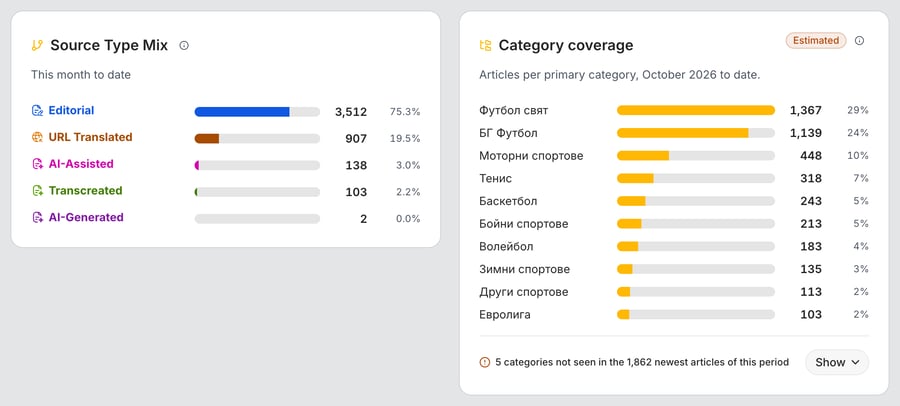
When your project publishes many articles in a month, the Dashboard does not read every one of them. It reads a sample that is spread over the whole month and projects the counts from it. In that case, an Estimated badge appears next to the title. Select the (i) next to it to see how many articles the estimate is based on, for example Counts projected from a 1,862-article sample of 4,662 in total. Without the badge, the counts are exact.
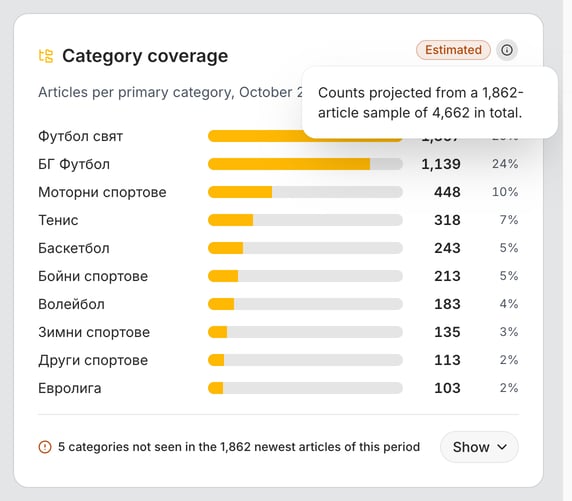
Under the list, a line tells you about the categories of your project that do not appear in it:
- Read the line. When the Dashboard counted every article, it reads 4 categories with no published articles in this period. When it counted a sample, it reads 5 categories not seen in the 1,862 newest articles of this period, because a category that is not in the sample may still have articles. The numbers differ from project to project.
- Select Show to see the names of those categories.
- Select Hide to close the list again.
Monthly Trends, Monthly Breakdown and Daily Breakdown
At the bottom of the Dashboard are three panels. They are closed by default and load nothing until you open them, which keeps the Dashboard quick.
- Scroll to the bottom of the Dashboard.
- Select Show in the header of Monthly Trends (Last 12 Months), Monthly Breakdown or Daily Breakdown. The panel opens and the button becomes Hide.
- To close a panel, select Hide.
The Dashboard remembers which panels you left open, separately for each browser, so they open the same way the next time you use the Dashboard in that browser. Opening Monthly Trends or Monthly Breakdown for the first time can take a few seconds, because both read the last 12 months.
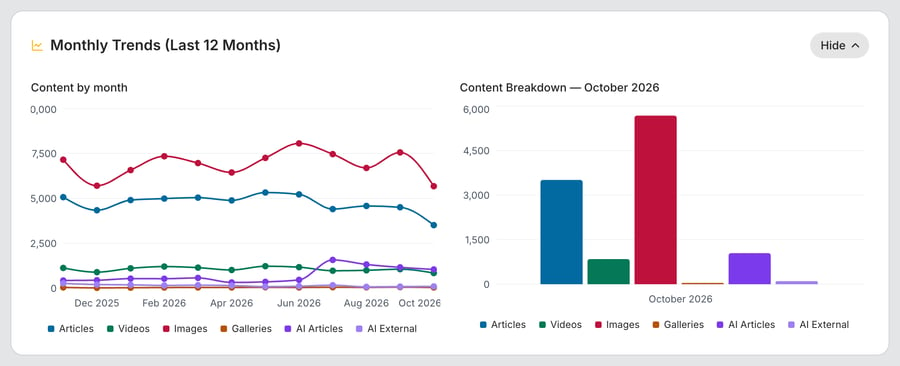
Monthly Trends (Last 12 Months) has two charts. Content by month is a line chart with one line for each of the six content types over the last 12 months. Content Breakdown — October 2026 (the current month) is a bar chart with the six content types side by side. Point at a point or a bar to see its exact value.
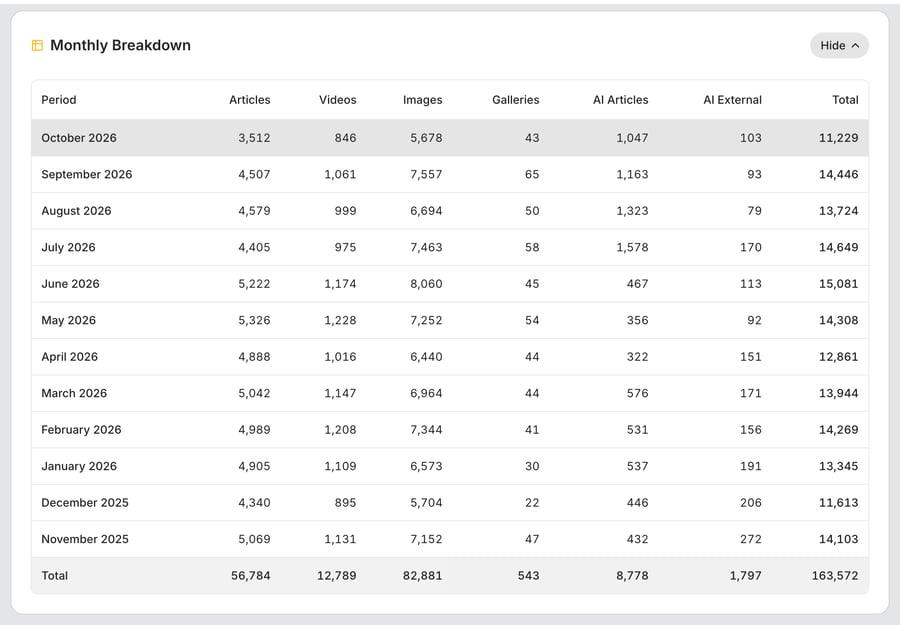
Monthly Breakdown lists the same 12 months as a table, newest first, with the columns Period, Articles, Videos, Images, Galleries, AI Articles, AI External and Total. The current month is highlighted, and a Total row at the bottom adds up the 12 months. When you scroll, the header row and the first column stay in view.
Daily Breakdown — October 2026 (named after the current month) shows one stacked bar for each day of the month so far, split by content type, and a table below it with the columns Date, Articles, Videos, Images, Galleries, AI Articles, AI External and Total, newest day first. The table scrolls inside the panel.
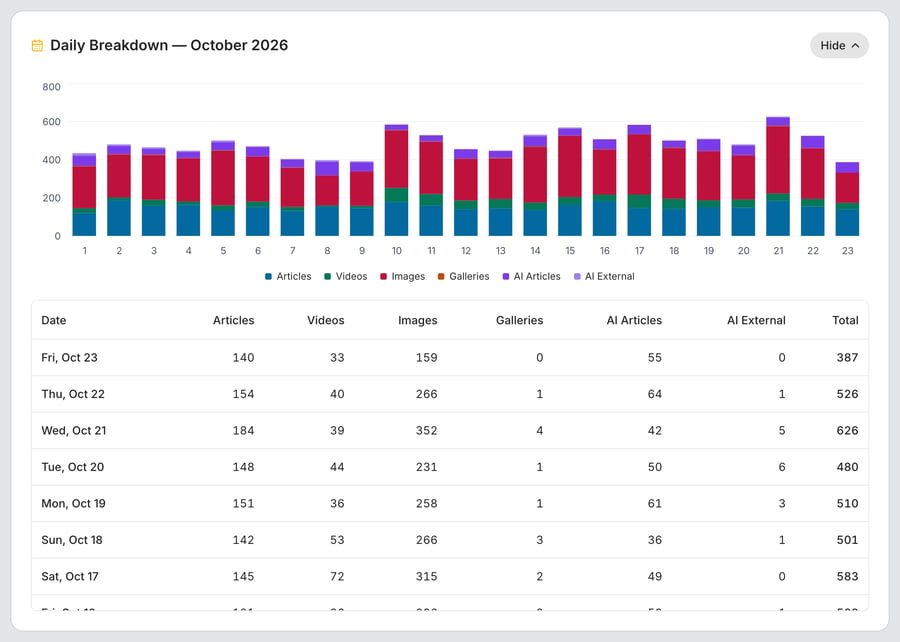
In these panels, Articles follows the same rule as Articles Today: AI articles are counted separately in AI Articles and AI External.
The (i) help buttons
Seven small (i) buttons explain what a section counts. Point at one, or select it on a touch screen, to read its text. The buttons are next to:
- Today's Content: today and yesterday use your project's time zone, not your browser's, and the cutoff for yesterday is "now" in project time.
- AI Generated: lists the source types the card counts and says they are left out of the main articles count.
- AI External: explains transcreated articles and says they are left out of the main articles count.
- My content: everything you created in the last 24 hours, in any status, newest first.
- Today by Source Type and Source Type Mix: the same text about the source types.
- Category coverage, next to the Estimated badge: the size of the sample.
When numbers are missing
Each number on the Dashboard is loaded on its own, so a problem with one number does not blank the page.
- A number that cannot be loaded shows a dash (—) and never a 0. A note such as Some counts failed to load and are not included. tells you that a total or a chart is missing a part, and Yesterday's comparison is unavailable for some cards. appears when only the comparison is missing. Select Refresh to try again.
- When every number of a section fails, the section shows Failed to load data. and Check your connection and try again. Select Retry to reload just that section.
- A chart that cannot be drawn says The chart could not be loaded. and has its own Retry button.
- A quiet project shows empty states, such as No articles in this window or No articles published this month yet.
- If no project is selected, the Dashboard asks you to select one: Select a project to see its dashboard.
Permissions
The Dashboard follows the permissions of your role in the current project (see Roles and permissions):
- With permission to read a type of content (articles, videos, galleries or images), you can select its card to open the today-versus-yesterday window. AI Generated and AI External follow the permission to read articles. Without it, the card title is plain text and the card is not clickable.
- Without permission to read articles, videos or galleries, the matching tab of My content says You don't have access to articles. (or videos, or galleries) instead of a list.
- With permission to edit a type of content, titles in My content are links and the edit button is shown.
The counts in Today's Content, Last 7 Days and the monthly sections do not depend on these permissions. Everyone who can open the Dashboard sees them.
What changed from the previous Dashboard
If you used the Dashboard before CMS 4.8.3, these are the main differences:
- The greeting moved to the top bar (Welcome back followed by your name).
- The row of four tiles for articles, videos, galleries and images became Today's Content, with six cards, a comparison with yesterday and a detail window for each card.
- My content now covers the last 24 hours, in any status, with tabs for articles, videos and galleries. Its Created by column and its Copy and Delete actions are no longer there.
- The Player, Team and Category statistics charts were removed from the Dashboard in CMS 4.8.3. For figures by category, use Category coverage, or By category in the detail window of a card.
- New sections: Today by Source Type, Last 7 Days with its tabs, AI share of articles, Source Type Mix, Category coverage and the three monthly panels.
Frequently asked questions
Why is Articles Today lower than the article list shows for today?
Articles Today leaves out the articles counted on AI Generated (AI-Generated, AI-Assisted and URL Translated) and on AI External (transcreated). It also counts only active articles published since midnight in your project's time zone. Add Articles Today, AI Generated and AI External together to compare with the list.
Why do today's numbers not match yesterday's report?
Today is compared with yesterday up to the same time of day, not with the whole of yesterday, so yesterday's number on a card is usually lower than the final total of that day. Also check the time zone: the Dashboard uses your project's time zone, and a report that uses another one cuts the day at another hour.
Why can I not select a card?
Your role does not have permission to read that type of content in this project. The card still shows its numbers, but it does not open the detail window. Ask a project administrator to check your permissions (see Roles and permissions).
Why does a card show a dash instead of a number?
That number could not be loaded. The Dashboard shows a dash and not 0 so that a failed number is never mistaken for a real zero. Select Refresh. If the dash stays, try again in a few minutes.
Why is My content empty when I worked on content today?
My content lists only items that you created yourself in the last 24 hours. Items created by a colleague, or by you more than 24 hours ago, do not appear, even if you edited them today. Check that you are on the right tab (Articles, Videos or Galleries) and in the right project.
Why does Category coverage say Estimated?
Your project published too many articles this month for the Dashboard to read them all, so it projects the counts from a sample. Select the (i) next to the badge to see the size of the sample. Treat the counts as close estimates: the exact numbers can differ slightly from the real ones.
Can I choose another date range or month?
No. The Dashboard always shows today, the last 7 days, the current month so far and the last 12 months. To look at articles from other dates, use the PUBLISHED DATE filter of the article list; see Using the new All Articles list.
Do I need to refresh the Dashboard to see new content?
No. Today's Content updates itself every 5 minutes while the tab is open and visible. Select Refresh when you want the latest numbers right away.