![Sportal365 logo-4.png]](https://knowledge-base.sportal365.com/hs-fs/hubfs/Sportal365%20logo-4.png?height=40&name=Sportal365%20logo-4.png)
The Match Center widget brings several views of one volleyball match together behind a tab bar, shown below the scoreboard for that match.
The fastest way to add a Volleyball widget: select the Volleyball icon in the quick-add row below the article body — no need to open the full block picker and search a category list.
Preconditions
- Your project must have the Volleyball feature enabled. Widget categories are switched on per project, so if Volleyball widgets does not appear in the block picker, ask your administrator to enable it.
- You need permission to create or edit articles.
- This widget is match-scoped, so you need a specific match rather than a competition.
Adding the Volleyball Match Center Widget to a post
To set up the widget:
- Open an article for editing, or create a new one.
- Below the blocks in the article body is a row of quick-add buttons: the content blocks first, then one icon for each sport enabled on your project, then +. Hover an icon to see its name — the Volleyball icon is hovered here.

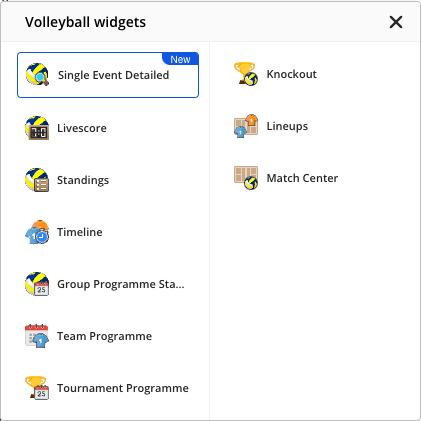
- Select the Volleyball icon, then choose Match Center from the widget list that opens.
- Set the widget options. Team controls what it shows.
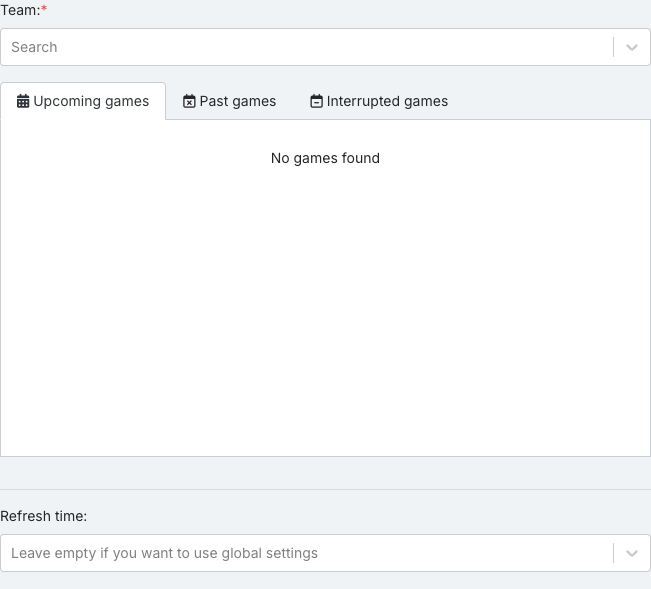
- Check the options are the ones you want. Some fields depend on others, so a list can be empty until you set the field above it.
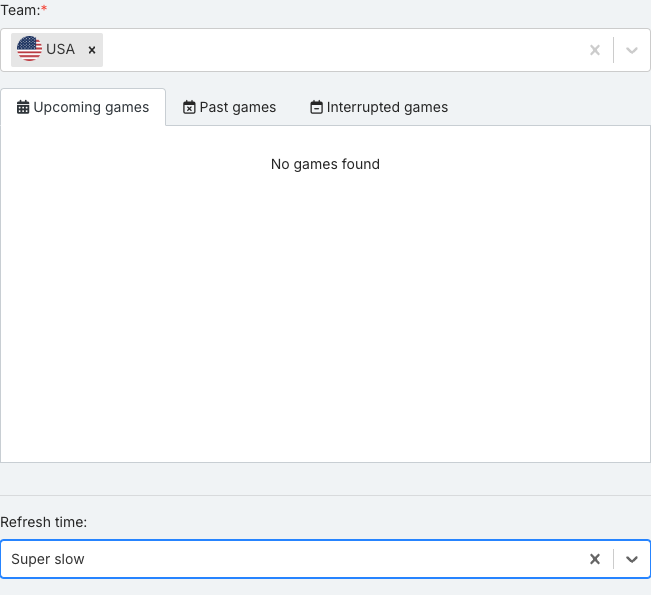
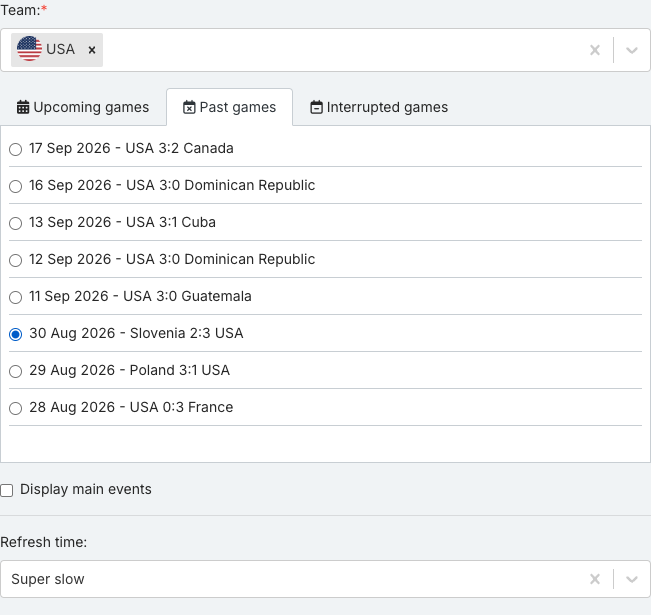
- The match list has Upcoming games, Past games and Interrupted games tabs. They read “No games found” until a team is set; then Upcoming games lists the team’s scheduled matches and Past games its finished ones. If Upcoming games stays empty, the team has no scheduled matches — open Past games. Select the specific match you want — the widget has nothing to show until one is checked. Once a match is checked, Display main events appears below the list.
- When done, select Save block.
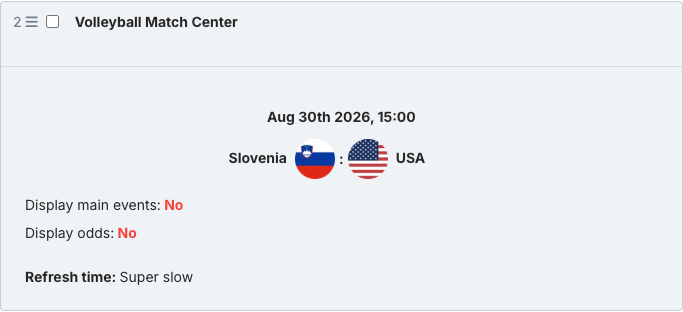
- Hover the saved block. Of the controls that appear (Copy embed code, Preview, Edit and Remove), select Preview to see the real widget.
Volleyball Match Center Widget options
- Team (required) — The team whose data you want to show. Type to search.
- Display main events — Highlights standout match events directly on the match card. It appears once a match is selected.
- Refresh time — Controls how often the published widget refetches its data. Leave empty to use your project’s global refresh setting.
What the Volleyball Match Center Widget shows
Three tabs sit below the same scoreboard. Selecting one changes only the panel underneath:
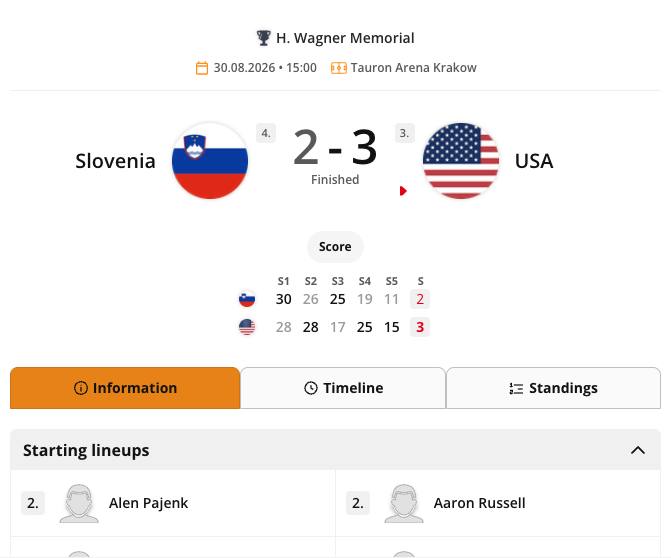
- Information — starting lineups: both teams’ players in a Starting lineups section, with shirt numbers
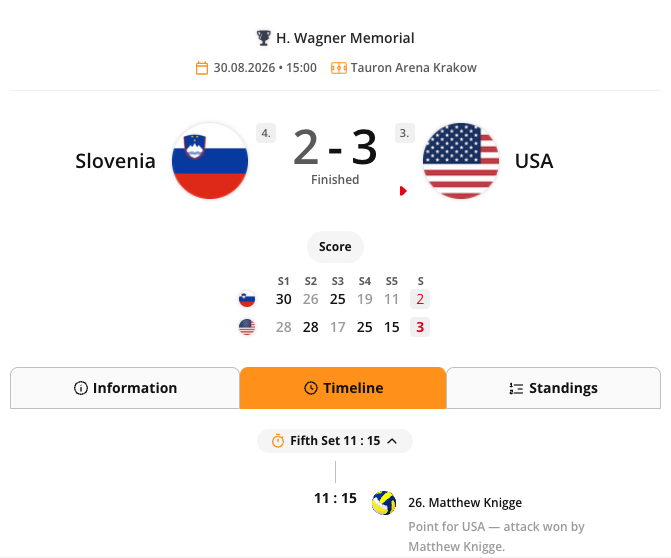
- Timeline — match events: the match’s point events, set by set
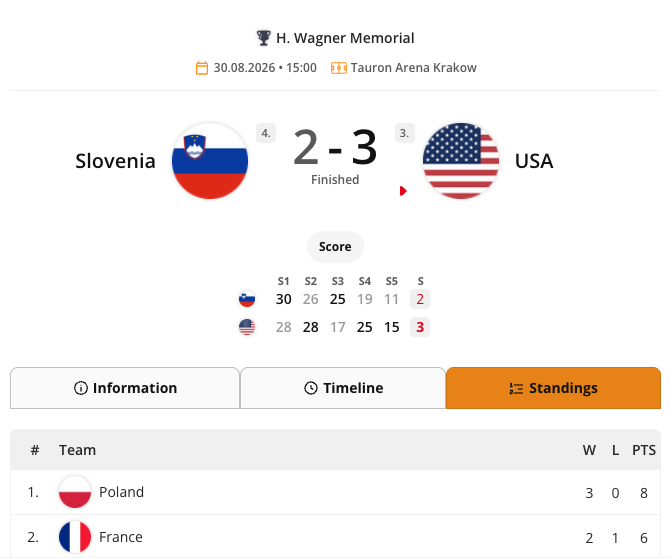
- Standings — group table: the table for the group this match belongs to (for a knockout match this tab is labelled Playoff instead)
Preview of the Volleyball Match Center Widget
The widget shows the match scoreboard with the tab bar underneath, Timeline selected first by default.
Selecting the Information tab shows both starting lineups.
Selecting the Standings tab shows the group table for this match.
Good to know
Only the preview shows the real widget. The collapsed block and the options panel show a CMS summary card instead — always check preview before publishing.
- The preview area is narrower than a published page, so the widget uses its compact layout there and may hide columns that the published version shows.
- The widget always renders whichever version of the sports widgets library your project is on. There is no version to set.