![Sportal365 logo-4.png]](https://knowledge-base.sportal365.com/hs-fs/hubfs/Sportal365%20logo-4.png?height=40&name=Sportal365%20logo-4.png)
Watch the video: How to Sign In to the Sportal365 CMS shows these steps in a short walkthrough.
You sign in to the Sportal365 CMS with your Sportal365 work account. One account and one password give you access to the CMS, so you do not need a separate login for each tool or project. This guide shows you how to sign in, what you see afterwards, how long you stay signed in and how to sign out.
What changed
The CMS sign-in screen no longer asks for a username and password of its own. It sends you to the Sportal365 sign-in page, where you log in with the e-mail address and password of your Sportal365 work account. This keeps your credentials in one secure place and lets the CMS recognise you without asking again every time you open it.
Sign in step by step
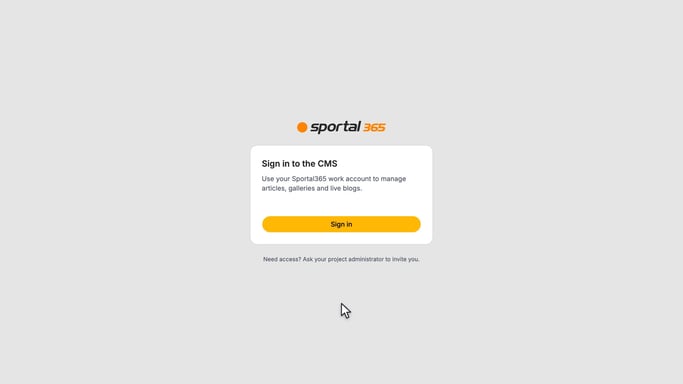
- Open the CMS in your browser. The Sign in to the CMS screen appears. Select the yellow Sign in button. This takes you to the Sportal365 sign-in page, which is where your account is checked.
- On the Sportal365 sign-in page, enter the e-mail address of your work account in Email address and your password in Password. Select the eye icon at the end of the password field if you want to check what you typed before you continue. Both fields are required.
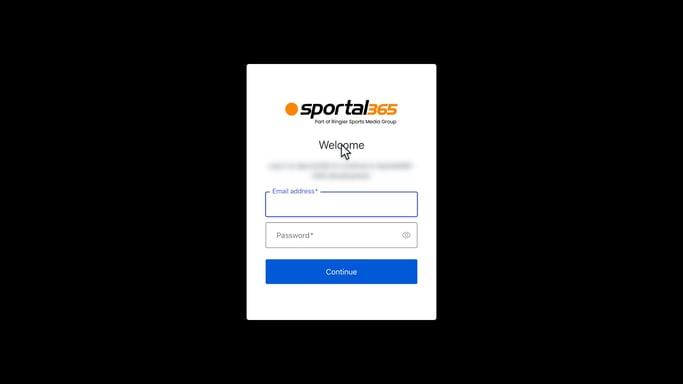
- Select Continue. If the details are correct, the CMS opens. If they are not, the page tells you so and you can try again.
Your project and the Dashboard
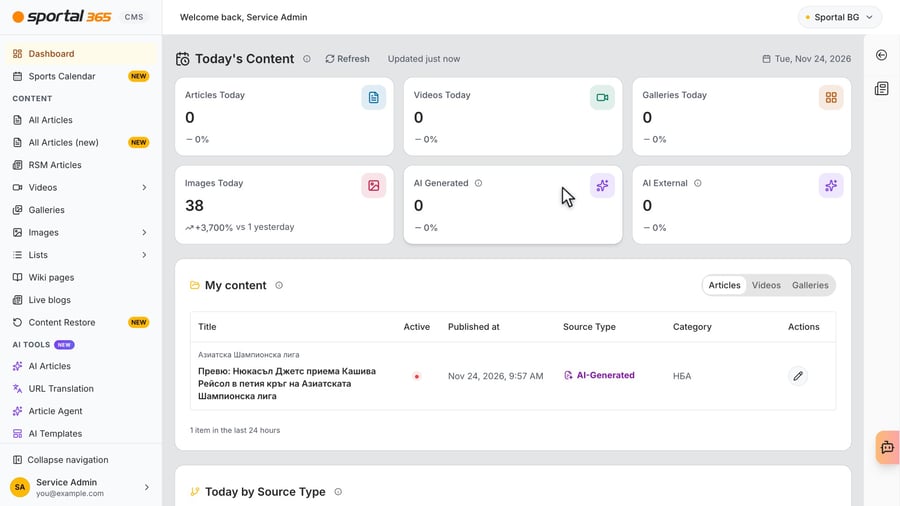
After you sign in, the CMS opens the Dashboard. At the top it greets you, and at the top right it shows the project you are working in. This matters because everything you see and edit belongs to that project. If your account can work in more than one project, you work in one project at a time and you can change it from the project switcher at the top right. See How to switch between projects.
Staying signed in
- Reloading the page keeps you signed in, so you do not lose your place if the browser refreshes.
- After 24 hours the CMS does not send you away from your work. It renews your session in the background, so you can keep working without interruption.
- The exception is a password reset. If your password has been reset, the CMS cannot renew the session, and you need to sign in again with the new password.
Sign out
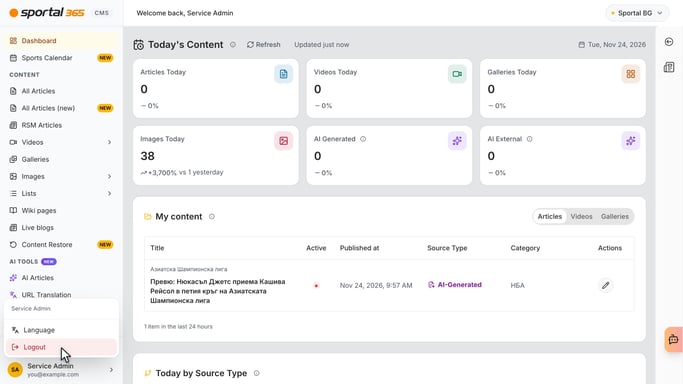
To sign out, select your account card at the bottom of the left sidebar. It shows your initials, your name and your e-mail address. In the small menu that opens, select Logout. You are signed out and the sign-in screen appears again.
Always sign out on a shared or public computer. Otherwise the next person who opens the CMS in that browser can work with your account and your rights.
Trouble signing in or need access
- You do not have an account yet. Accounts are created by a project administrator, and there is no self sign-up. Ask your project administrator to invite you, as the sign-in screen says under Need access?
- You forgot your password or it does not work. The sign-in page has no forgot-password link. Ask your project administrator for help.
- The CMS asks you to sign in again. This can happen after a password reset. Sign in with the new password.