![Sportal365 logo-4.png]](https://knowledge-base.sportal365.com/hs-fs/hubfs/Sportal365%20logo-4.png?height=40&name=Sportal365%20logo-4.png)
A newer release is available: see CMS Release 4.8.3 for the latest changes.
We're excited to announce the release of Sportal365 CMS Version 4.8.0, a major update that gives the CMS a new look and navigation. It also brings a redesigned article list with bulk editing, a Content Restore page for deleted articles, a help chat inside the CMS, a redesigned Article Agent, and improvements to AI Suggestions, the article editor and several widgets. This article summarizes what has changed and links to the guides that cover each feature in detail.
Watch a short video of the release, then read the details below.
A new look and navigation
Every CMS screen now sits inside a new, light frame: the sidebar on the left, the breadcrumb and the project switcher at the top, and your account card at the bottom of the sidebar.
- Sidebar sections: the sidebar groups the CMS pages under CONTENT, AI TOOLS, ENTITIES, OTHER, SPORT, CUSTOMIZATION and INTEGRATIONS, with Dashboard at the top. Every entry has an icon, and the page you are on is highlighted. Select the sportal365 logo to return to the Dashboard.
- NEW badges: All Articles (new), Content Restore and the AI TOOLS section are marked NEW.
- Submenus: entries with a chevron (Videos, Images, Lists, Football and Fans United) open a submenu in place.
- Collapse navigation: at the bottom of the sidebar, Collapse navigation shrinks the sidebar to a rail of icons. Hover over an icon to see its name, and select Expand navigation to bring the full sidebar back.
- Breadcrumb: the breadcrumb, for example Dashboard / Articles, shows where you are. Select Dashboard in it to go back to the Dashboard.
- Account menu: your account card (initials, name and email) now sits at the bottom of the sidebar and replaces the account menu of the old top bar. Select it to open Profile, Language and Logout.
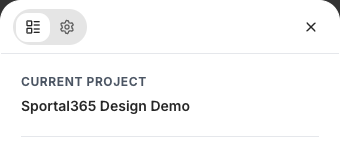
- Project switcher: the project switcher at the top right shows the project you are working in. Select it to see your CURRENT PROJECT and to switch to one of your AVAILABLE PROJECTS.
- Interface language: the gear tab of the project switcher opens QUICK SETTINGS, where Language switches the CMS interface between English and Bulgarian. Language in the account menu opens the same tab.
- Narrow windows: when your browser window is narrower than about 1280 pixels, the sidebar is hidden. Select the menu icon at the top left, next to the logo, to open it over the page.

For a full tour, see Navigating the Sportal365 CMS and How to switch between projects. To check the permissions of your role from the new account menu, see Roles and permissions.
Help chat inside the CMS
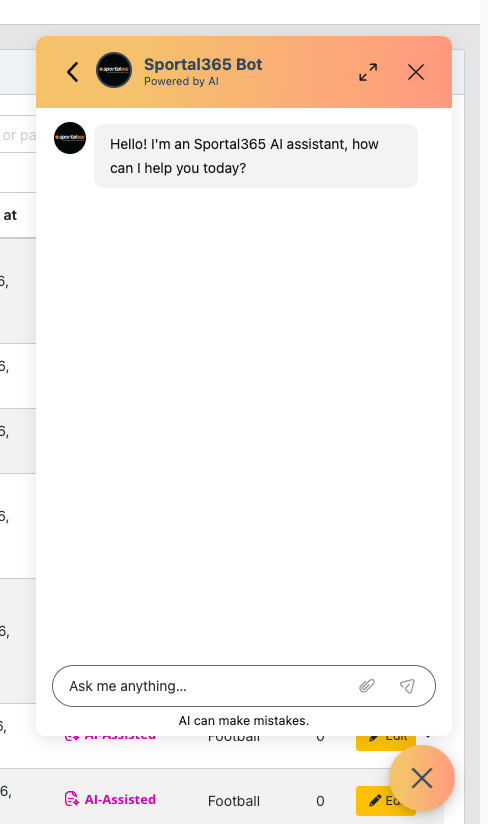
An orange chat bubble now sits at the bottom right of every CMS screen. Select it to open the help chat and ask the Sportal365 AI assistant, Sportal365 Bot, a question without leaving the page you are working on. Type your question in Ask me anything... and send it. The answers are generated by AI and can contain mistakes, as the note under the question field reminds you. To close the chat, select the X.
To learn more, see Getting help inside the CMS.
All Articles (new)
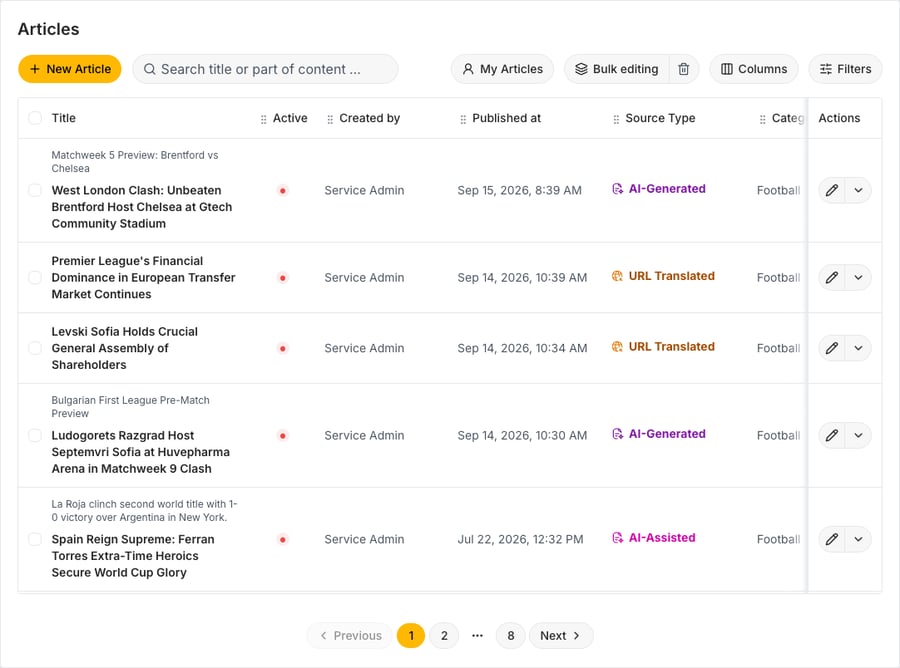
A redesigned article list, All Articles (new), is available under CONTENT. The All Articles list you already know stays in the sidebar directly above it, so you can use both.
- Search as you type: the list updates while you type in the search field (Search title or part of content …). Select the x in the field to clear the search.
- My Articles: shows only the articles you created.
- Columns: show or hide Active, Created by, Published at, Source Type and Category, drag a column by the grip next to its header to move it, and select Reset columns to return to the default layout.
- Filters: a side panel with STATUS, TAGS, CATEGORIES, TYPE, PROPERTIES, CREATED BY, DOMAIN and PUBLISHED DATE. Each filter applies as soon as you choose it, the Filters button shows how many are active, and Clear all resets them.
- Sports connections: set DOMAIN to Sport to search teams, players, coaches, competitions, matches and venues in a single SPORTS CONNECTIONS field. Articles must match every connection type you add.
- Row actions: the pencil (Edit Article) opens the article. The arrow next to it (More actions) offers Copy Article, Preview and Move to Trash. Copy to project is available only in the All Articles list.
To learn more, see Using the new All Articles list. See also How to create an Article and How to duplicate content.
Bulk editing
In All Articles (new), you can now change or delete many articles at once.
- Select articles: tick the checkbox at the start of each row, or the checkbox in the header to select the whole page. Select all 100 (max) selects up to 100 articles across pages, and Unselect all clears the selection.
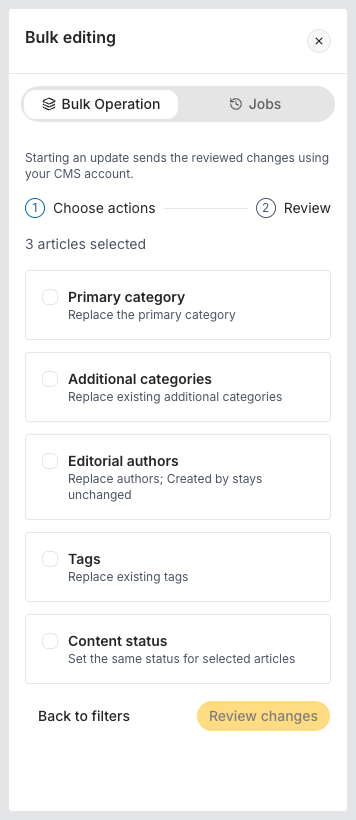
- Choose the changes: with 2 or more articles selected, select Bulk editing. In the side panel, tick one or more actions (Primary category, Additional categories, Editorial authors, Tags or Content status) and choose the new value for each. The new values replace the existing ones; with Editorial authors, Created by stays unchanged.
- Review before you start: Review changes shows how many articles are selected and lists every change; fields not listed stay unchanged. Start operation runs the changes as a background job. There is no automatic rollback, so check the review carefully first.
- Bulk delete: the trash-can button next to Bulk editing (Bulk delete) deletes the selected articles in a background job. Its confirmation explains that archived articles can be restored from Content Restore.
For the steps, see How to bulk edit articles. Learn more about the fields you can change in Organizing content with Categories, Organizing content with Tags and Organizing content with Authors.
Move to Trash and Content Restore
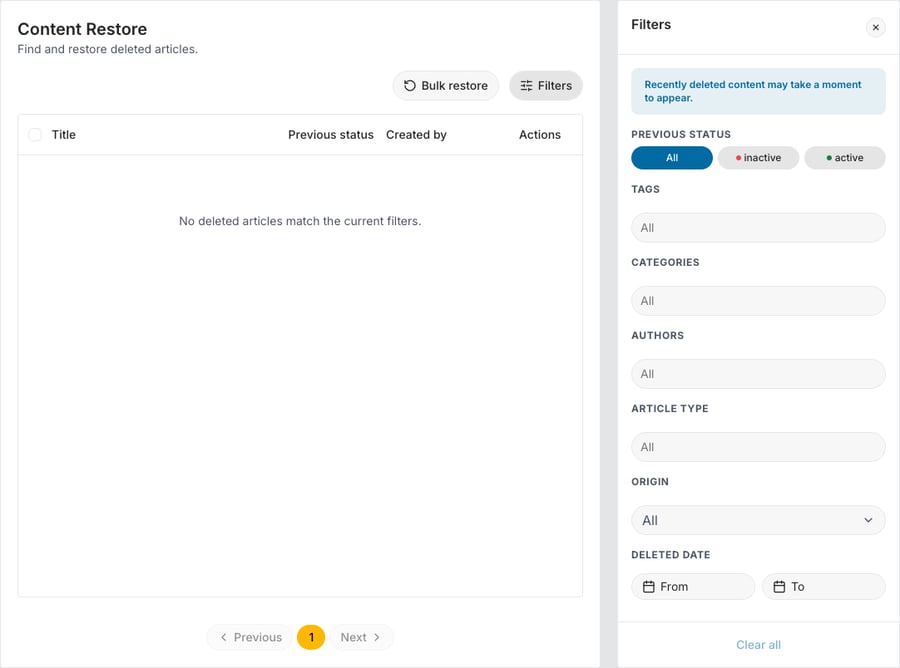
Articles you delete in All Articles (new) now go to a new page, where you can find and restore them.
- Move to Trash: in All Articles (new), open More actions in the article's row and select Move to Trash. The confirmation explains that the article will be moved to Content Restore and that it may take a moment to appear there.
- Content Restore: a new page under CONTENT that lists deleted articles, the most recently deleted first. Use the Filters panel to narrow the list by PREVIOUS STATUS, TAGS, CATEGORIES, AUTHORS, ARTICLE TYPE, ORIGIN and DELETED DATE.
- Restore or delete permanently: each deleted article's row has a restore button, and the arrow next to it offers Delete permanently.
For the steps, see How to delete and restore articles. See also Article overview.
Audit Log in the sidebar
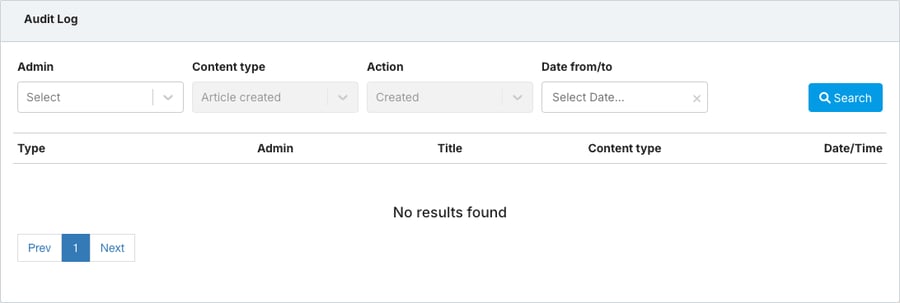
The Audit Log now has its own entry in the sidebar, under OTHER. Choose an Admin to see what that user created, updated or deleted, and narrow the results with Content type, Action and Date from/to. Content type and Action start as Article created and Created; to see everything an admin did, clear both with the x before you select Search.
For the steps, see Audit log.
Article Agent
The Article Agent (AI TOOLS > Article Agent) has been redesigned.
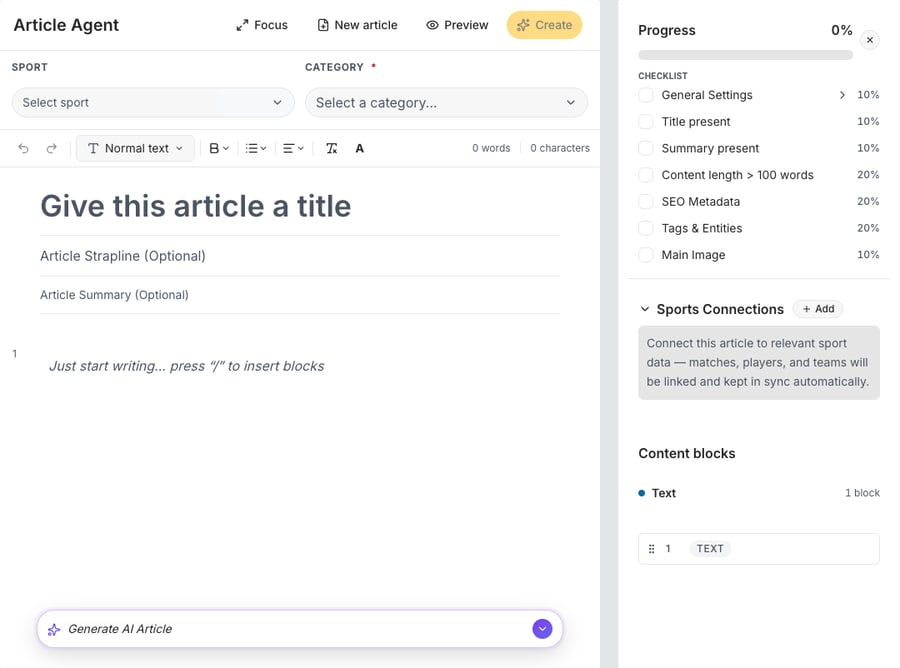
- New workspace: the header has Focus (distraction-free mode), New article, Preview and Create. Choose the SPORT and CATEGORY above the editor; each sport now has its own color icon. Type in the body, or press / to insert blocks such as headings, tables, images or a Single Event Detailed widget.
- Prompt bar: describe the article in the Generate AI Article bar at the bottom of the editor. Once the article has content, the bar becomes Iterate with AI…, so you can refine the draft with a new prompt; you are asked to confirm before your prompt rewrites the article.
- Article details: the column on the right shows a Progress checklist (general settings, title, summary, content length, SEO metadata, tags and entities, main image), the Sports Connections (add them with + Add) and the Content blocks, which you can drag to reorder.
- Live progress: while it writes, the agent shows status messages such as Gathering match data..., Writing article... and Verifying facts..., with a Stop generating button.
- Review in the agent: when the draft is ready, the notification Article generated appears and the draft stays in the Article Agent for you to review. A Verified badge above the title shows that the fact check passed, and AI Enrichment Proposals below the article offer SEO metadata options and, when a suitable image is found, main image suggestions.
- Create when you are ready: nothing is saved to the CMS until you select Create, and a CATEGORY is required to create the article.
For the full workflow, see AI Article Agent.
AI Suggestions in the article editor
- Clearer button: hover over AI Suggestions to see what it does. While the body is empty, the button is greyed out with the hint Add some text to the article to use AI Suggestions.
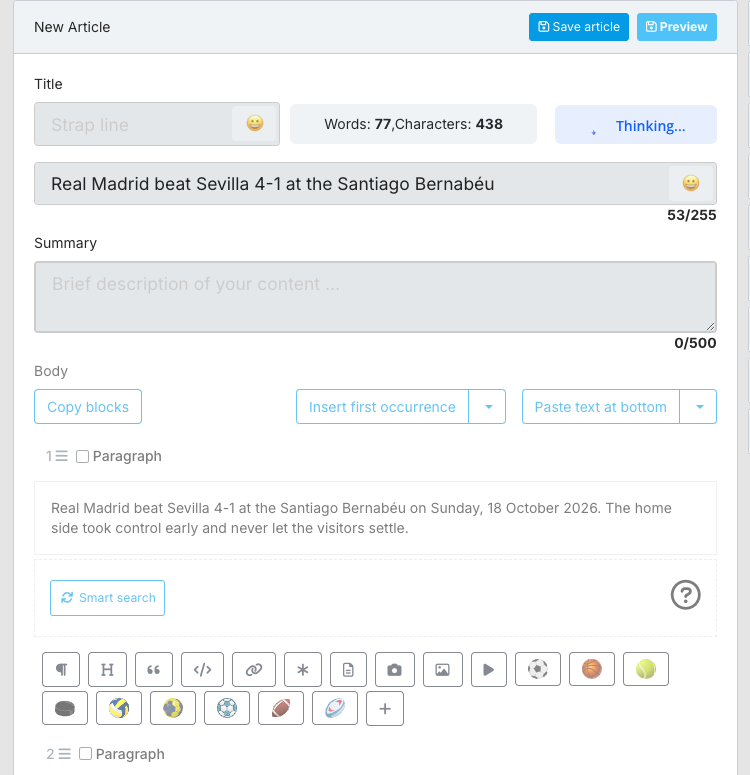
- While it runs: the button shows Thinking..., and the Strap line, Title, Summary and Body are locked until it finishes.
- Tip for match reports: tag the match in the Tags panel before you run AI Suggestions, so that the suggested widgets and SEO fields are based on that match.
See AI Suggestions in the Article Editor.
Editor improvements
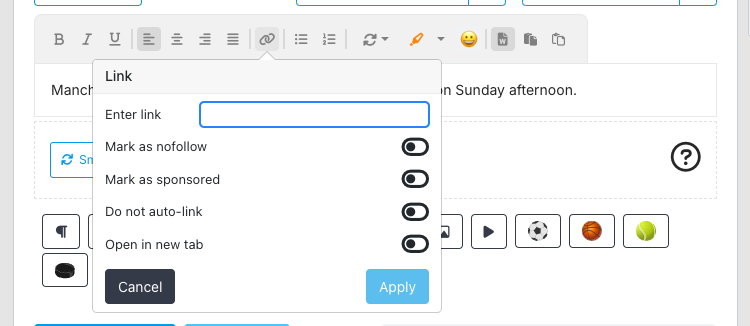
- Link menu: select text, then the Link button in the toolbar (or press Ctrl/Cmd+K). The Link popover has Enter link and four switches: Mark as nofollow, Mark as sponsored, Do not auto-link and Open in new tab. Click inside an existing link to change it, or to remove it with Remove link.
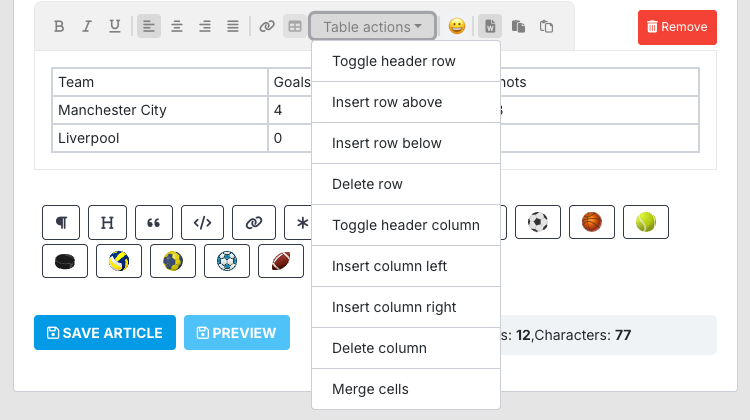
- Tables: add a table with + > Text > Table, pick its size in a grid of up to 10 by 10, and use Table actions to insert or delete rows and columns, toggle a header row or column, or merge cells.
- Required fields: if you save an article without a Title or a Main Category, the message Field must not be empty appears under the missing field.
- Custom blocks: only custom blocks with the status Active are offered in the + block menu.
Learn more in Writing, editing and formatting in blocks, Auto-linking, Tables, General and How to create custom blocks.
Widget changes
- Football Standings, Start from position: set the first table position the widget shows, where 1 is the top of the table. For example, a Limit of 6 with Start from position 5 shows positions 5 to 10. See Football Standings Widget.
- Team H2H History, Display widget options: this option replaces Display widget header. It is selected by default and shows the H2H and team tabs above the results; clear it to show only the list of matches. See Football Team H2H Widget and Football Matches H2H Widget.
- Football Lineups, team colors: the color pickers start with each team's colors and reset when you choose a different match, so pick custom colors after you select the match. See Football Lineups Widget.
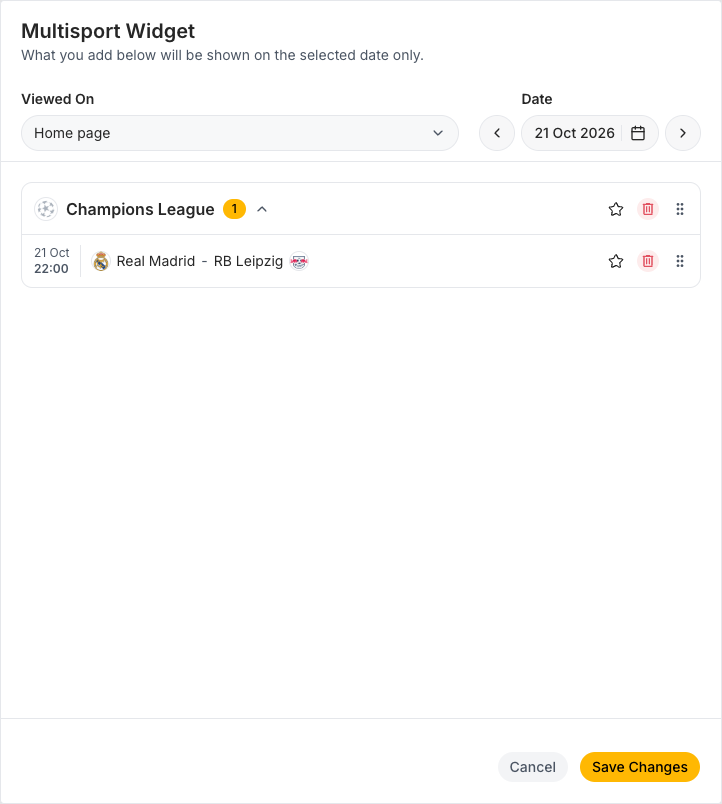
- Multisport widget configuration: the page (OTHER > Multisport widget configuration) has a new layout. The Multisport Widget card shows the events for the selected Date, and the Add events panel lets you search events by name, filter them by sport and browse other days without changing the configured date. Select Save Changes to save. See Multisport Widget.

For questions about any of the changes in this release, open the help chat or contact the Sportal365 support team. As always, your feedback helps us continue improving the Sportal365 platform.
Thank you for your continued support and dedication to creating outstanding sports content with Sportal365.